
Key takeaways:
- Large, do-it-all workspaces are slow, hard to read, and risky to hand off. Breaking them into smaller workspaces is a better strategy.
- An FME engine runs one job at a time and is single-threaded, so stacked readers run sequentially. Splitting work across multiple workspaces and engines unlocks parallelism.
- Automations are a better way to chain workspaces than the FMEFlowJobSubmitter, with per-workspace retries, failure notifications, and clear logs.
- Engine count is the hard ceiling on parallelism, and queue control is the lever that routes the right job to the right engine.
- Moving the temp folder off the system drive onto fast, dedicated storage is one of the cheapest performance wins, and it never touches the workspace.
Most slow, sprawling workspaces started off small: one workspace that does one thing, sized so a colleague can quickly understand it. But over time, more gets bolted on, and you end up with a single massive workspace that does everything and takes ages to run or debug.
Let’s tackle this issue in three parts: breaking the workflow into modular components, orchestrating them with Automations, and optimizing the infrastructure they run on.
For a deep dive into this topic, watch our webinar, Design Faster, Smarter FME Flow Workflows That Scale.
Why modularize FME Workspaces?
The problem with giant, do-it-all workspaces is that performance, readability, and debugging suffer. Finding a failure means combing through the whole thing, and there are no natural break points, so the job either fully succeeds or fully fails. It also becomes very difficult to understand the workspace, especially for other people who might need to open it in the future. Plus, when a large workspace is stuck on a single engine, blocking your queue, nothing else can use that engine.
A workspace with many readers stacked on the canvas doesn’t read them in parallel. An FME engine processes one job at a time and runs single-threaded, so ten side-by-side readers still execute one after another. When you break it into smaller, focused workspaces, all components can run in parallel across multiple engines.
Modular workspaces improve readability, engine management, parallel processing, failure response, and debugging across the board.
How to build modular workspaces
First, plan top-down, starting with your overall goals and high-level design, then working down to workspaces, bookmarks, and finally transformers. It takes more planning upfront, but it clarifies which platform features you can use and forces you to consider the orchestration layer (FME Flow) from the start. When the end state lives in FME Flow, designing for that from the beginning produces a leaner, faster result.
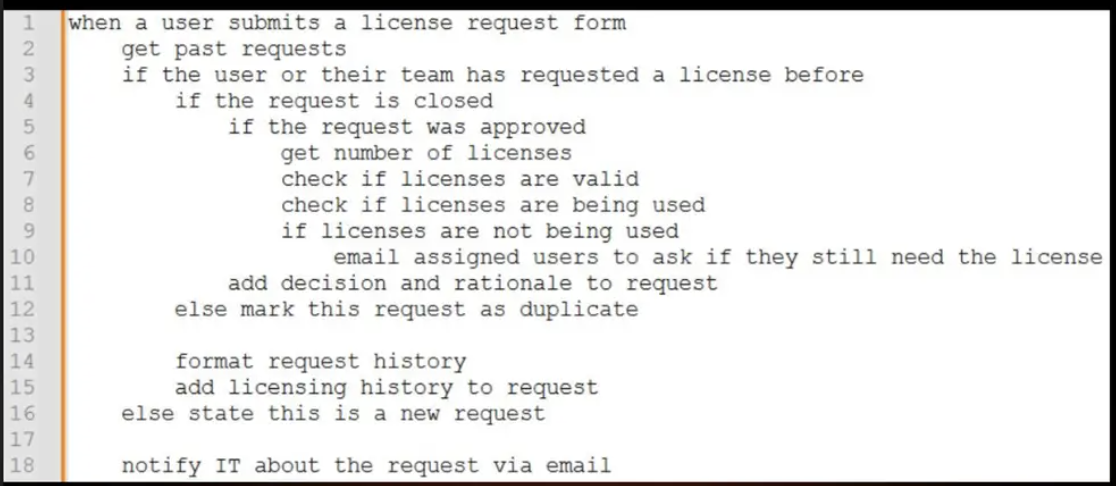
One aid for top-down planning is pseudocode: a plain-language, step-by-step description of what the workflow should do. This plan doubles as documentation, makes it easier to bake in best practices, and gives collaborators a shared reference before anyone opens FME Form.
Second, when you split a workspace, look for natural breakpoints. You can split vertically, separating readers and writers so distinct feature classes are read by distinct workspaces that run in parallel. You can also split horizontally, cutting where one stage finishes and another begins, for instance right after a FeatureWriter or where a workspace calls an external service.
Not everything can be split. Transformers that merge, group, or aggregate must stay together, because they operate over the whole dataset at once. But wherever data flows from one self-contained stage into the next, you have a candidate breakpoint. Cutting there means a failure reruns only that stage, and you gain visibility into exactly which stage succeeded or failed.
Orchestrate with Automations, not job submitters
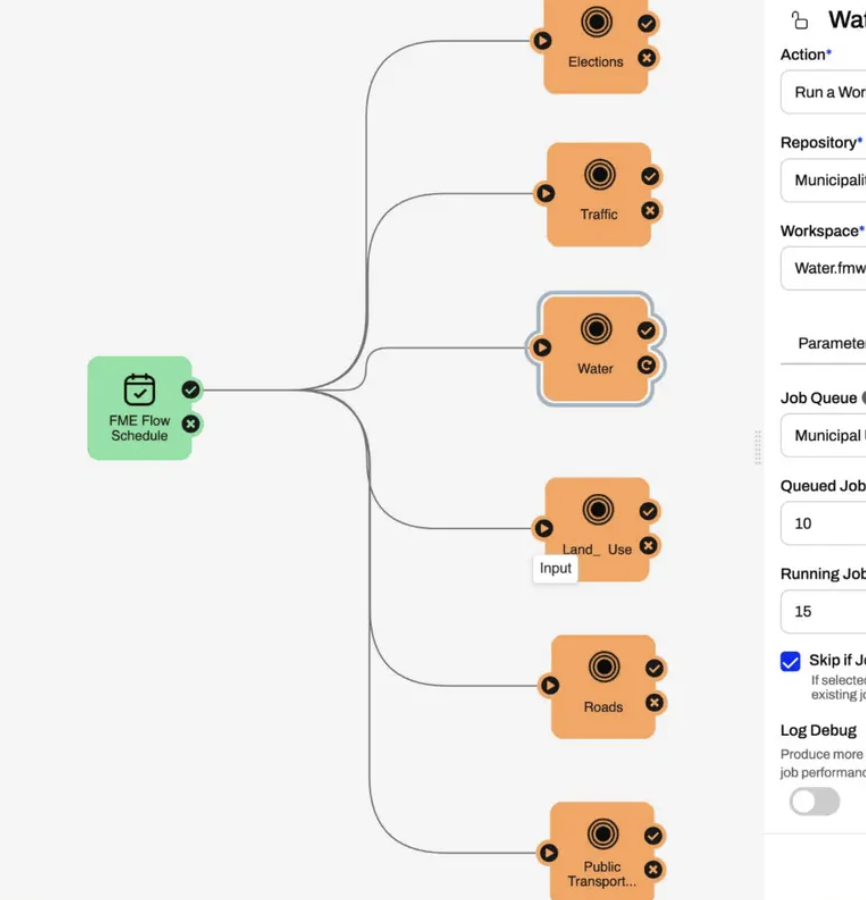
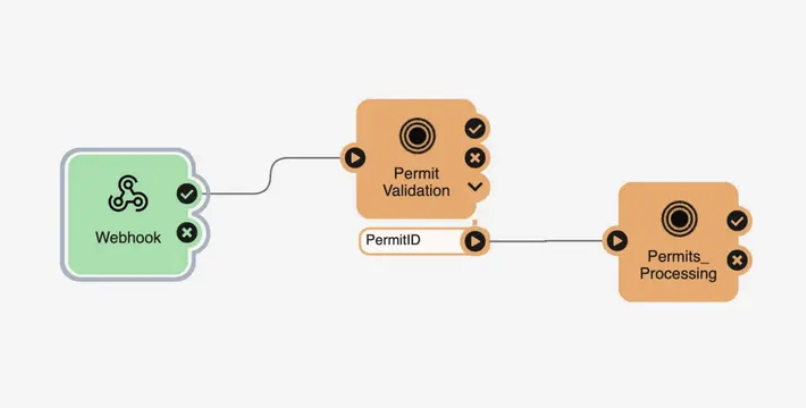
Once a workspace is broken into pieces, use an FME Flow Automation to coordinate them. Each workspace becomes a “Run a Workspace” action with explicit success and failure ports. The payoff is observability. Instead of opening workspaces and reading logs, you see at a glance which parts ran, succeeded, or failed, like a control center for your jobs.
To pass data between modular workspaces, use the Automations Writer. Placed in a workspace, it sends selected attributes downstream to the next action, adding an extra output port beneath the Run a Workspace action. For each record passed, the downstream workspace runs with that record’s data. This is what lets modular workspaces stay separate while working together as one continuous process.
You may find an older pattern in inherited workspaces: the FMEFlowJobSubmitter transformer, which submits child jobs from inside a parent workspace. It works, but Automations are usually better for:
- Stability. Automations hold up better against networking blips, especially in fault-tolerant environments, and downstream actions don’t depend on upstream job success the way a job submitter’s child jobs depend on their parent.
- Readability and debugging. You can’t inspect an FMEFlowJobSubmitter from the web UI; you have to download the workspace and trace it through nested bookmarks, and child job logs are hard to locate. An Automation shows the relationships directly and links straight to the relevant log.
- Features. Automations offer better failure handling, including per-workspace retries and external email actions.
Use retries, and know how they differ from job recovery
Retries are configured per action: under each Run a Workspace action, a retry tab lets you enable retries and set the maximum attempts and delay between them. Retries ride out transient problems like network instability, engine failures, timeouts, and intermittent server-side errors. A classic case is a database table lock: wait a few seconds, try again, and the job often succeeds.
Don’t confuse Automation retries with job recovery, a separate setting under engine management. Job recovery applies to all jobs (not just the ones you choose) and fires after an engine crashes or is lost. It also handles job identity differently: it reuses the same job ID and overwrites the log, whereas an Automation retry submits a new job with a new ID and its own log. Because each Automation retry keeps its own log, you can compare a failed run against a successful one and see what changed. For granular, auditable control, Automation retries are usually what you want. (In distributed and fault-tolerant architectures, job recovery is generally left disabled, since engines keep processing during a temporary disconnection and resubmitting can create duplicates.)
Speed things up with queue control and the split-merge block
Parallel workspaces only help if they can run at the same time, which is where queue control comes in. Send them to a queue with multiple engines assigned, and those engines pick up the jobs together, completing the same work in a fraction of the time. Queues also carry priorities, so an urgent, unrelated job can cut ahead instead of waiting behind a long line of parallel jobs, then engines return to the automation’s remaining work.
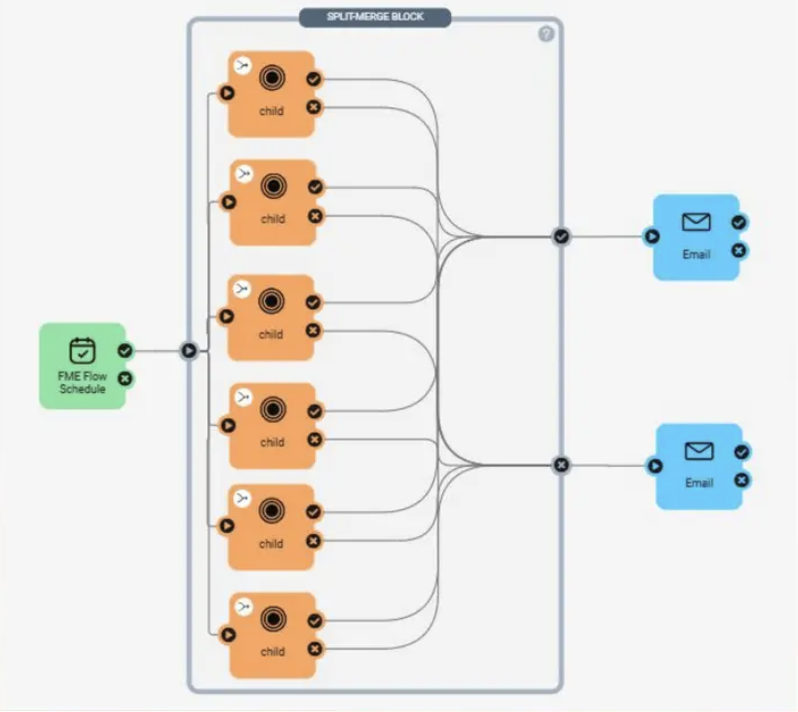
When you run many parallel workspaces but a downstream action must wait until all finish (say, a summary report or a completion email), the split-merge block treats everything inside it as one action. It guarantees all parallel workspaces complete before the downstream action runs, and triggers that action only once. Without it, six parallel jobs feeding an email would send six emails; inside a split-merge block, you get one. Use it whenever you need to control ordering or limit notifications.
Scaling infrastructure to match
Once you build a fully modular automation, the deployment can become the ceiling. A split-merge block that fans out into ten jobs does nothing extra if the deployment has only two engines: two jobs run, eight wait. Once the workflow is no longer the bottleneck, the fix moves underneath it, to infrastructure.
There are two directions to scale. Vertical scaling gives the same machine more resources: more cores, RAM, faster disk. Horizontal scaling adds machines: more engine hosts, distributed components, remote engines. Most teams start vertical because it’s simpler, then go horizontal when one machine becomes the constraint.
By default, FME Flow installs in Express mode, with all components (Core, engines, database, system share) on one host. A distributed install separates them. Express is still a full deployment, with no feature difference from distributed, and you can scale it incrementally by adding engines.
Choose single-host if:
- The workload fits comfortably on the machine
- The team is small
- You want simple backups and upgrades
Choose distributed if:
- You need to scale engines independently of Core
- You require a managed database
- You’re planning for high availability or fault tolerance
Except for remote engines, components should sit on the same network and close together, since the Core talks to the database constantly and distance hurts performance.
Engines are the workhorse, and the cap on parallelism
One engine runs one job at a time, so engine count is your hard ceiling on parallelism. Count your engines before designing for parallel execution, and design for what you have. Engines share host resources (CPU, RAM, disk, network), so you can’t add them indefinitely. Aim for roughly one CPU core per engine, leaving a core or two for the OS and Core. Note that adding engines increases throughput (more jobs at once) but doesn’t make any single workspace faster, which still depends on workspace design and hardware.
There are two engine license types, and mixing them is often right. Standard engines are always running, with predictable cost, ideal for steady baseline workloads. CPU-usage engines (also called dynamic engines) are billed by processing time, spin up when needed, and cost nothing while idle, suiting bursty work like data portals, monthly processes, and overflow. A common pattern: standard engines for the baseline, CPU-usage engines for the spikes.
Distributed engine host or remote engine?
These two get confused because both look like “engines on another machine,” but they solve different problems. A distributed engine host is still local to your deployment (same network and datacenter, just more capacity); use it when you need more engines and the Core host is full. A remote engine lives outside Flow’s network (a different region, cloud, or partner site) and connects back to Core over accessible endpoints; use it when data is remote, compliance requires in-region processing, or partner data can’t leave its environment.
The shortcut: scaling capacity points to distributed engines; solving distance points to remote engines. The deciding questions are where your data lives and how much you’re moving, since processing close to large data is far cheaper than dragging it across the network repeatedly. One rule cuts across all of this: any license or dependency a workflow needs (ArcGIS is the classic example) must exist on every host that might run it.
Queue control ties the deployment together
Queue control is what makes distributed engines, remote engines, and mixed engine types genuinely useful. Three pieces work together: job routing rules decide which queue a job enters; queues hold jobs and carry priorities (1 lowest, 10 highest); and engine assignment rules decide which engines pick up from which queue. Without it, every job just goes to the next available engine, fine only when all engines and jobs are alike.
In the real world they aren’t. Some jobs need ArcGIS, some need more memory, some run on Linux; some are lightweight and time-sensitive, others long-running and CPU-heavy. Queue control lets the deployment triage by runtime behavior so lightweight jobs aren’t stuck behind giant ones, and heavy jobs go to suitable infrastructure. Concretely, you can send Esri jobs to ArcGIS-licensed engines, route heavier workloads to beefier engines, prioritize lightweight time-sensitive work, send overflow to CPU-usage engines, and route jobs closer to the data.
Do not ignore the temp folder
FME does a lot of work on disk in a temp folder (sorts, joins, group-bys, FFS files, and other intermediate data), and by default that folder sits on the same drive as the OS and logs, where everything competes for disk access. When the temp drive is slow or low on space, every job slows down. It gets worse under memory pressure: when FME runs low on working memory, it swaps to the temp folder, so slow temp storage hurts even jobs that don’t look disk-heavy.
Signs your temp folder is the problem:
- Workflows that are fast one day and inexplicably slow the next
- “Out of disk space” errors, or unexplained slowdowns on disk-heavy jobs
- Temp sharing the same drive as the OS
- Fast storage (NVMe, dedicated SSD) sitting unused elsewhere
To fix it, move the temp folder onto fast, dedicated storage, which you can do after installation. Check where your temp folder lives, confirm it has room, and consider relocating it.
Read the log file like a diagnostician
Every job log opens with a system-status snapshot: temp folder location and available disk, physical memory available, and the thresholds at which FME starts freeing memory. If those numbers don’t match expectations, you may have found the bottleneck before reading further. As the job runs, a few things are worth scanning for:
- Warning signs of memory pressure: “Optimizing Memory Usage,” “Failed to free sufficient memory,” and warnings about FME_TEMP on a network drive. These usually mean the job spilled into temp space; a crash with no clear error is often memory-related too.
- Elapsed time versus CPU time: the most useful single diagnostic. If a job took 30 minutes of wall-clock time but only 30 seconds of CPU, FME wasn’t the bottleneck; something underneath was waiting on a resource.
- Retry logs: because each Automation retry produces its own log, comparing a failed run with a successful one can show exactly what changed.
A layered view: design, orchestration, deployment
Performance in FME Flow spans three layers, and a problem can occur in any of them: the workflow (what your data does), the orchestration (when and in what order it runs), and the deployment (where it runs). Identifying which layer owns a problem usually tells you how to solve it.
The layers also depend on each other. Modularizing a workspace pays off only if orchestration parallelizes it correctly, and that pays off only if the deployment has enough engine capacity. So when troubleshooting, look at design, orchestration, and deployment together. Break workflows into smaller components, replace job chaining with Automations, use parallel processing, and monitor with logs and insights.
Learn more
- Automated Retries: Getting Started with Automations
- Split-Merge Block: Accessing and Managing Automations
- Automations Writer: FME Flow Automations Writer documentation
- Performance Tuning and Scaling: Resource Planning Essentials for FME Flow Deployments
- Overview of Scaling Resources and Performance Optimization on FME Flow Hosted: FME Flow Hosted Pricing and Sizing
- FME Academy: FME Flow learning courses
- Knowledge Base: support.safe.com