

Key takeaways:
- MCP is best understood not just as an AI feature but as a general integration layer: connect a data source once, and every MCP-capable client can use it.
- MCP is not just about data. Every MCP-capable client can now use the full power of FME, including all its transformation capabilities.
- Any FME workspace can become an MCP tool by swapping its writer for an MCP writer, publishing it to FME Flow, and registering it with its parameters. No matter what that workflow does—receive data, return data, trigger a process to start—it can be invoked.
- The description of the tool and all the parameters are key to making your tool add value. This determines when your tool is called. Since the agent doesn’t see the workspace, it must specify valid values, formats, and when to ask the user rather than guessing.
- Small, single-purpose tools beat large monolithic ones, because an agent can chain focused tools in combinations you never explicitly designed. The future belongs to highly focused applications and tools that can be easily connected together.
- A planner-in-a-loop workspace lets an AI accumulate facts and answer open-ended questions across changing datasets without rebuilding logic. Increasing the system’s capability is simply the creation of new tools on the FME Flow-hosted MCP Server. No change is needed to that workspace; it becomes more powerful the moment the tool is published.
The fastest way to make enterprise data useful to any AI agent or MCP client is to expose your existing data integration workflows as tools the agent can call. With the Model Context Protocol (MCP) and FME, a workspace that has served a team for years can become something an AI assistant or other MCP client invokes, with your validation, permissions, and logging still in place.
Let’s discuss what an MCP tool is, how to convert an existing FME workspace into one, how multiple tools combine into agent-driven workflows, and how to push the idea further so an AI agent can plan its own multi-step analysis. The examples use FME and ArcGIS, but the principles apply to any integration.
For a deep dive into this topic and live demos, watch our webinar, From Esri to AI: Create an MCP Server in 7 Minutes with FME.
MCP is an integration layer
MCP is an open standard introduced by Anthropic that lets AI agents call tools and retrieve data through a single, consistent interface, replacing a tangle of one-off integrations with one protocol.
The more interesting framing is that MCP is not only about AI. It is a general-purpose integration protocol.
Any client that speaks MCP can discover and call tools, whether that client is a chat assistant, an application, a developer tool, or another program entirely.
- “Anthropic created MCP to make it easy for AI to access data, but what they really created was the world’s best integration protocol.”
An integration protocol is not just about data. With MCP, the FME ecosystem is expanded to all systems that support MCP—and not just data systems, but also command and control systems, messaging systems, industrial systems, you name it. There’s no limit. If it has an MCP interface, now FME can use it.
- “Everything with an MCP interface is now part of the FME ecosystem. Everything able to use MCP is now able to leverage the entire capabilities of FME—not just the data, but also the processing.”
Everything you connect through MCP becomes available to every AI model or other MCP client you use, so you do the work once rather than rebuilding it for each new tool.
Access to the Hard Data
Capable models are widely available, which means most of the effort in any AI project is in data preparation. Legacy systems with no API, records locked on-premises, formats no language model understands, and complex workflows can all form barriers.
An AI is only as capable as the data it can reach, which is where data integration comes in.
- “FME is the layer between all your data and MCP.”
How FME Flow acts as the MCP server
A single FME Flow deployment can now create one or more MCP servers, and each tool it exposes is backed by an FME workspace. When a client calls a tool, Flow runs the workspace and returns the result, typically as JSON.
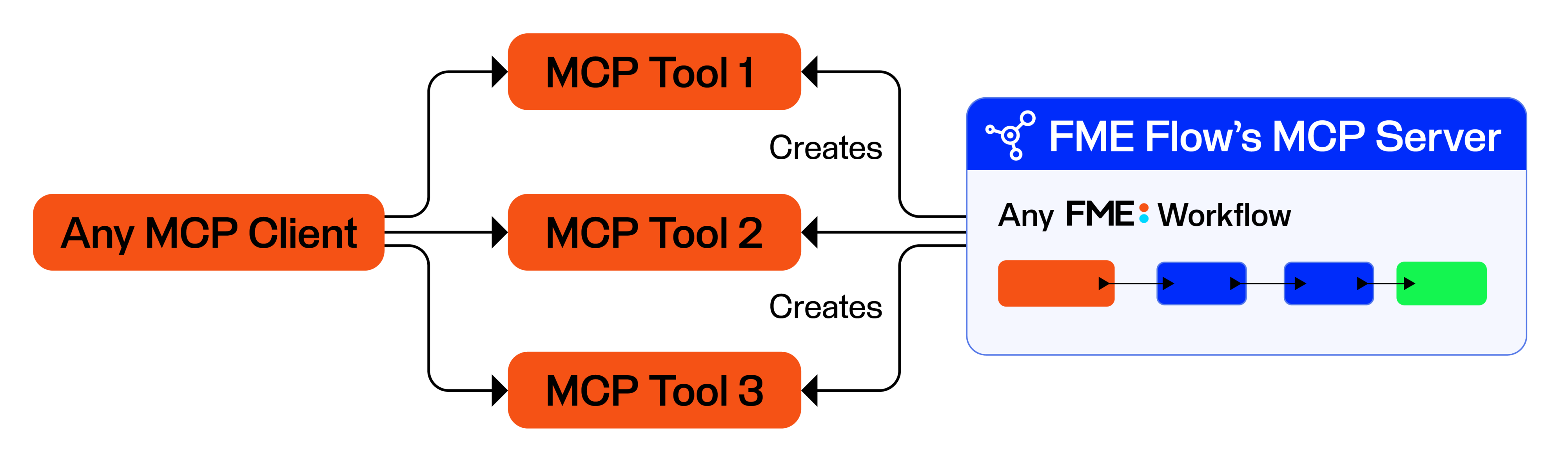
Every MCP tool has the same shape: it takes inputs, performs an action, and returns a response. That maps cleanly onto a workspace, where published parameters are the inputs, the body does the work, and a writer (if present) produces the response. (Note that returning data is not a requirement, as the MCP tool may trigger an action on a foreign system or trigger an Automation in FME Flow.)
FME Flow orchestrates every interaction. The client can request an action, but FME controls how it is carried out, including authentication, connections, permissions, logging, and job execution.
Governance is inherited rather than rebuilt: the same Flow authentication that protects a scheduled job also protects every MCP call. Tools are discoverable by any MCP client, but none of them sees the workspace logic underneath, only the tool’s name, description, and parameters.
How to turn an FME workspace into an MCP tool in 3 steps
Consider a common municipal scenario: a field worker reports a cracked sidewalk while still on site. The job is to describe the issue, attach it to the correct parcel, set an urgency, create a work order, and update the map. Behind the scenes, the work order is written to a PostgreSQL work_orders table and a parcel layer in Esri ArcGIS is updated.
An existing workspace might read inputs (parcel ID, work type, requester, urgency, notes), validate them and add a timestamp, insert a database row, and update the ArcGIS feature. The client supplies only the variables you choose to expose, keeping the conversation flexible while your workflow, data, and business rules remain under control.
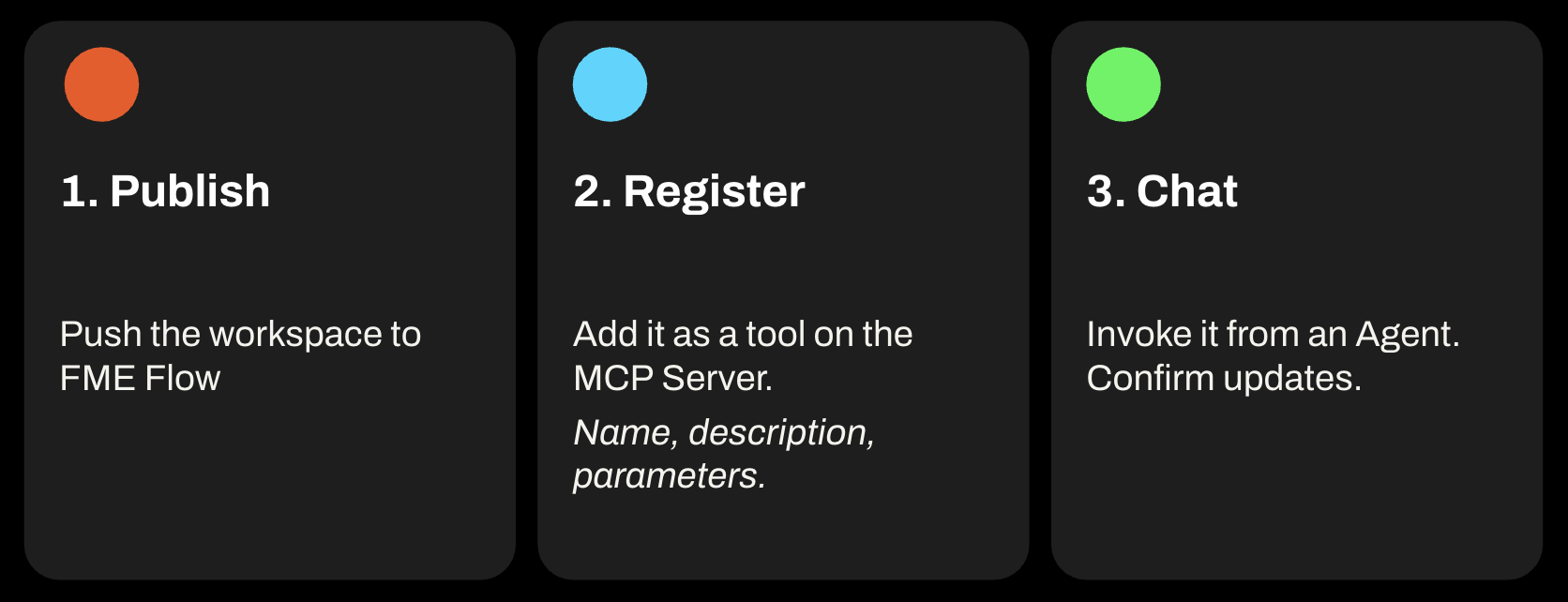
Converting the workspace into a tool takes only a few minutes:
- Prepare and publish. Replace the workspace’s terminal step (e.g. an email) with an MCP writer, which defines what comes back to the client: text, structured content (JSON), images, resources, or embedded content. Adding it flags the workspace as an MCP tool. For a structured response, a transformer such as the JSON Object Builder turns selected attributes into a single JSON feature wired to the writer. Return only what the client needs (a map link, a parcel ID, a work order ID), treating the output as an API response, not a database export. Keep input parameter types simple (text, numbers, booleans, dates, dropdowns), test locally, then publish to FME Flow as usual.
- Register the tool. A single Flow instance can host multiple MCP servers, each with multiple tools, organized by domain or user group. Create a server, give it a description, and Flow generates a connection URL. Add a tool pointing at your published workspace, then describe each parameter: the required format for parcel ID, the allowed values for urgency, and an instruction to ask the user for the requester’s name rather than guess. The pattern throughout is: define the field, give the constraints, and say when the client needs more information.
- Connect a client and test it out. Most AI clients let you add an MCP server by URL. A deliberately messy prompt is a good stress test, e.g. “create a high-priority sidewalk repair for parcel 1188,” with the name omitted and the parcel ID malformed. With strong descriptions, the client asks for the missing name and corrects the format before calling. FME runs the workspace, writes to the database, updates ArcGIS, and returns the result. Underneath, it is still a standard Flow job, visible in job history with its inputs and processing details; the only difference is that MCP triggered it.
Create a workflow with several tools
The real shift happens when an agent has several related tools and uses the result of one to decide what to do next. Because the client ingests every tool on a server when it connects, it understands what is available and can suggest sensible next steps on its own.
Building on the work order example, a small set of focused tools (query_work_order, assign_crew, etc.) turns ArcGIS into something an agent can operate conversationally. With these in place, one conversation can create a work order from a terse prompt, list all open work orders, assign crews to just the high-priority ones (the agent filters the list it already holds, no extra call needed), then check who can see the map and share it with a supervisor group. The agent chains the tools; FME carries out each action. The pattern generalizes well beyond municipal work, to logging an inspection, routing a case and drafting a handoff note, or reshaping a monthly export for an analytics team. The recurring verbs are ask, act, orchestrate, and bridge.
Designing tools that agents use well
Because the agent only ever sees metadata, design choices on both sides of the tool matter:
| From the agent’s side | From the workspace’s side |
|---|---|
| The description is the API contract: state valid values, formats, and expectations explicitly. | The MCP writer returns only what the agent needs (a status, an ID, a link), framed as an API response. |
| Say when a parameter should prompt the user; that instruction becomes a validation step before the workspace runs. | Design for flexible inputs: one workspace handling a range of inputs often beats several narrow ones. |
| Be precise, since different models interpret the same metadata differently. You can enlist an AI to draft descriptions. | Stick to simple parameter types, since no human reviews the values before the workspace runs. |
| Smaller, specific tools give the agent more to combine, so specificity produces flexibility. | Let the workspace absorb the complexity and governance behind the scenes. |
A good starting point for a first tool is the text response type, the simplest to set up. Structured content and richer return types (links, files, images) are natural next steps once the basics work.
From running tools to making decisions
The examples so far have an agent calling tools you anticipated, but the more ambitious pattern lets the AI do the planning.
Traditionally, answering a question about a dataset meant knowing the schema, designing the logic in advance, and building for one question at a time. That breaks down when the dataset is unknown, the question keeps changing, or the user does not know what to ask. The alternative is to stop encoding logic and instead expose capabilities, then let the AI decide how to use them. The arrangement has three parts: a planner (the AI) that reasons, MCP tools that represent capabilities, and FME that executes.
- A question goes to the AI planner, which picks an MCP tool
- FME runs it and returns a result
- The planner decides whether it has enough information or needs another step
- The loop repeats, and knowledge accumulates
The AI never sees the data directly, only tool descriptions (what it can do) and tool results (what it has learned). For example, asked “how many addresses are on Pacific Street,” the planner might load a dataset, create a local context around a location, discover an “Addresses” feature type, profile it to learn it has STREET and ADDRESS attributes, and only then count addresses whose street name contains “Pacific.” Each iteration adds a fact and informs the next.
Mechanically, this can be a single compact workspace with a few transformers. It gathers the available MCP tools, holds a long prompt of rules the planner must follow, and injects the accumulating state (the tools, the user’s questions, the planner’s current knowledge, and previous responses), which grows richer with each run.
The toolset behind such a planner is a library of small, single-purpose workspaces grouped by job. For example:
| Group | Tools |
|---|---|
| Dataset lifecycle | load_dataset, create_local_context, delete_dataset |
| Exploration | dataset_discovery, profile_feature_type, get_distinct_values |
| Analysis | filter_and_count, filter_and_group_count, compare_attributes_and_count |
| Quality assurance | attribute_completeness, geometry_issue_summary |
Simpler than a typical full workspace, these are quick to build and easy to reason about.
The approach is compelling because of how it grows. Adding one tool unlocks a whole class of new questions without touching the main workflow. Add a create_local_context tool that clips data to a radius or street, and questions that only worked across an entire city (“how many poles need painting?”) can be answered for a specific location (“how many poles need painting within 100 metres of me?”). The same toolset then serves field and augmented-reality scenarios as well as office analysis. Because FME reads a wide range of formats, the same planner can answer questions against utility data, a DWG file’s blocks by layer, a Revit model’s furniture, or a tabular dataset of Nobel laureates, just by changing the question and the dataset.
One practical caveat on model choice: in long, multi-step reasoning, stronger hosted models hold up better than smaller local ones, which have tended to start hallucinating after several steps, especially on questions needing a dozen or more iterations. Splitting the planner into smaller pieces helps, and local models keep improving.
Keeping data governed and secure
Connecting AI to enterprise data does not mean handing the data over. FME acts as a guardian:
- The AI never accesses raw data directly—only the results a tool chooses to return through its defined interface.
- You decide which fields a tool exposes, so a table with sensitive columns can be surfaced through a tool that returns only the safe ones.
- Every workspace run is logged, so you know who ran what.
- Deployment is your choice (cloud, on-premises, hybrid, or air-gapped), with FME running wherever your data already lives. For fully internal cases, the same tools can sit in front of local AI models so neither data nor inference leaves the firewall.
- Enterprise authentication options continue to expand, including single sign-on through identity providers and OAuth-based access control.
Get started
MCP can do anything, and with FME, you can leverage MCP in the cloud, on-premises, or air-gapped. You can also control exactly what data is exposed to AI in any deployment using FME as a Data Guardian. The MCP clients never get direct access to your raw data, and in fact have no idea what the raw data looks like.
Any FME workspace can become an MCP tool through three steps that only take a few minutes: publish, register, test. Once your MCP tools live on a server, an agent can chain them into powerful workflows you never designed explicitly. Pushed further, a single planner-in-a-loop workspace lets the AI plan its own analysis across changing data while FME executes each step under your governance.
The most useful first move is to pick one workspace you already have and register it as an MCP tool. FME Flow’s MCP server capability is built in, with no separate license or add-on, so the path from a working workspace to a callable tool is short.