Shapefile To GeoJSON: Best Practices
Shapefiles and GeoJSON are both popular formats for storing vector GIS data, such as points, lines, and polygons, but they serve very different purposes. Shapefiles, a long-standing standard from the 1990s, rely on multiple linked files (.shp, .shx, .dbf, etc.) and still remains the go-to choice for sharing data between desktop GIS software like ArcGIS and QGIS, where they excel at handling datasets, complex local analysis, and compatibility with legacy or professional workflows. GeoJSON, by contrast, is a modern, web-friendly format that bundles geometry and attributes into a single, lightweight JSON file, making it ideal for online maps, APIs, web libraries like Leaflet or Mapbox, and easy sharing over the internet. As GIS increasingly shifts toward web applications and real-time data exchange, GeoJSON is gaining popularity for its simplicity and developer-friendliness. At the same time, Shapefiles remain essential for traditional desktop and offline use.
The limitations of Shapefiles become clear when you consider that GIS systems are shifting toward web dashboards, cloud platforms, and API-based data access. Shapefiles are complex for serving directly over the internet, comprise multiple files, and are not streamable by default. The majority of web-GIS platforms and contemporary mapping libraries require data to be in a lightweight format that is easy to publish, transfer, and use via URLs or APIs.
For this reason, it is now often necessary to convert Shapefiles to GeoJSON. Thanks to GeoJSON, spatial data can now be shared across departments and agencies, used directly in web maps, and easily integrated into dashboards and services. In real-world projects, how this conversion is managed frequently dictates whether a web-GIS application functions properly or encounters problems with accuracy, performance, or integration.
Recognizing the necessity of this conversion and knowing how to perform it properly is essential to developing scalable and dependable GIS solutions in a contemporary, web-driven setting. This article explains three methods for converting a shapefile to GeoJSON and provides best practices for doing so.
Summary of key concepts related to converting from Shapefiles to GeoJSON
| Concept | Description |
|---|---|
| File structure differences | A shapefile consists of multiple dependent files that store geometry, attributes, and indexing separately. GeoJSON consolidates all spatial and attribute data into a single, lightweight JSON file suitable for web and cloud environments. |
| Attributes of a shapefile | A shapefile is a collection of at least four main files: .shp (geometry), .shx (shape index), .dbf (attributes), and .prj (projection). |
| Attributes of GeoJSON | GeoJSON uses a single, lightweight JSON file that stores all geometry and attribute data together. |
| Using the Correct Coordinate Reference System (CRS) | GeoJSON is designed for geographic coordinates, so Shapefiles must be reprojected to WGS 84 (EPSG:4326) to ensure accurate positioning and compatibility with web mapping platforms. |
| Using reliable conversion tools | Established tools, such as Python libraries and no-code ETL platforms, provide controlled, repeatable conversion workflows that reduce errors and support automation. |
| Checking encoding and format compatibility | UTF-8 encoding and a valid JSON structure are essential to ensure that GeoJSON files render correctly and remain compatible with web-GIS frameworks and APIs. |
| Preserving attribute data | Attribute fields stored in the shapefile’s database component must be accurately mapped into the GeoJSON properties structure to retain analytical and contextual value. |
| Metadata and documentation | Recording projection information, data sources, and processing steps supports reproducibility, transparency, and long-term data management across systems and teams. |
Understanding the shapefile and GeoJSON formats
Shapefiles and GeoJSON differ significantly in their structure, usability, and suitability for modern GIS workflows. These differences directly influence how spatial data is stored, shared, and consumed across desktop, web, and cloud-based environments.
File structure and data packaging
The shapefile format is a multi-file system introduced in the 1990s for desktop GIS applications like Esri Arcview. It stores geometry, attributes, indexing, and coordinate reference information across multiple dependent files (.shp, .dbf, .shx, and .prj). All of these files must remain together for the dataset to function correctly, which can complicate sharing and deployment, particularly in web and cloud environments.
GeoJSON, by contrast, is a single-file format based on JavaScript Object Notation (JSON). It combines geometry, attributes, and coordinate information into one self-contained, human-readable file. This structure simplifies storage, transfer, and version control, making GeoJSON easier to distribute and manage in modern data pipelines.
Compatibility with web and cloud platforms
Shapefiles were designed primarily for desktop GIS software and are not natively supported by web browsers or most web mapping libraries. To be used online, they typically require conversion, packaging, or server-side processing.
GeoJSON is natively supported by web browsers, JavaScript mapping libraries, and cloud-based GIS platforms. Its JSON structure allows spatial data to be consumed directly by WebGIS applications, APIs, and real-time services without additional preprocessing.
Data exchange and API integration
Because Shapefiles are composed of multiple files, they are poorly suited for direct data exchange over the internet or via APIs. They often need to be compressed, uploaded, and manually unpacked before use.
GeoJSON is well-suited for data exchange and API-driven workflows. It can be served directly via URLs, embedded in API responses, or streamed to client applications, making it ideal for cross-departmental data sharing and real-time access.
Performance and usability in modern workflows
Shapefiles perform well in traditional desktop-based analysis but become less efficient in web environments due to file size, packaging requirements, and lack of native browser support.
GeoJSON is optimized for modern workflows that prioritize accessibility and interoperability. While not a compact format for datasets, it offers superior usability for web mapping, cloud storage, and interactive visualization.
Shapefiles remain suitable for desktop GIS analysis, legacy systems, and workflows tightly coupled to traditional GIS software. GeoJSON, on the other hand, is better suited for web mapping, cloud-based platforms, and data-sharing scenarios where ease of access, interoperability, and real-time use are critical.
Method #1: QGIS (the beginner quick guide)
QGIS is a widely used open-source GIS platform. The program allows users to experience the same functionality as digital sandbox operations through very simple steps. The tool works best for single-conversion tasks that don’t require basic Python functionality.
Here’s the step-by-step guide:
- Run QGIS (don’t worry if you don’t have it installed yet; it’s very easy to download).
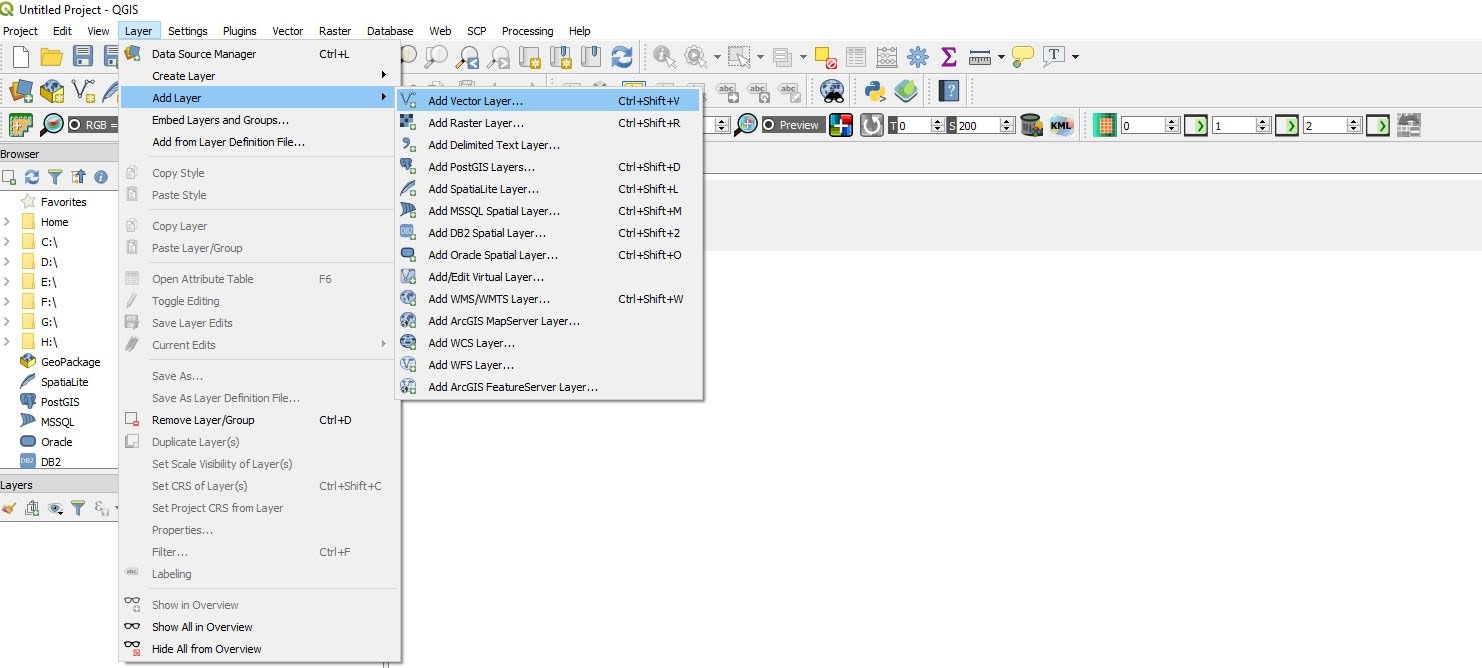
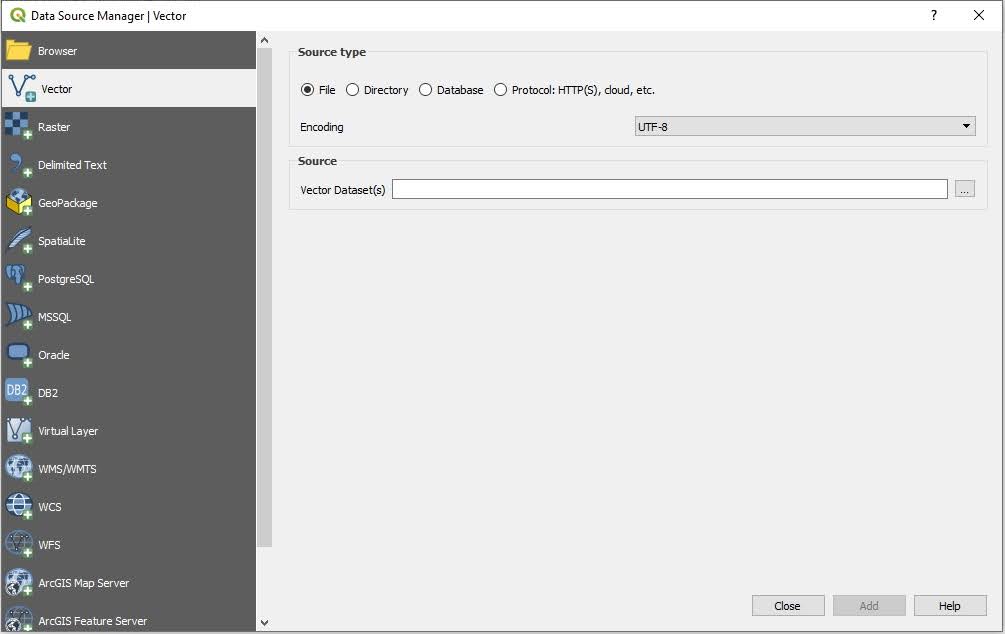
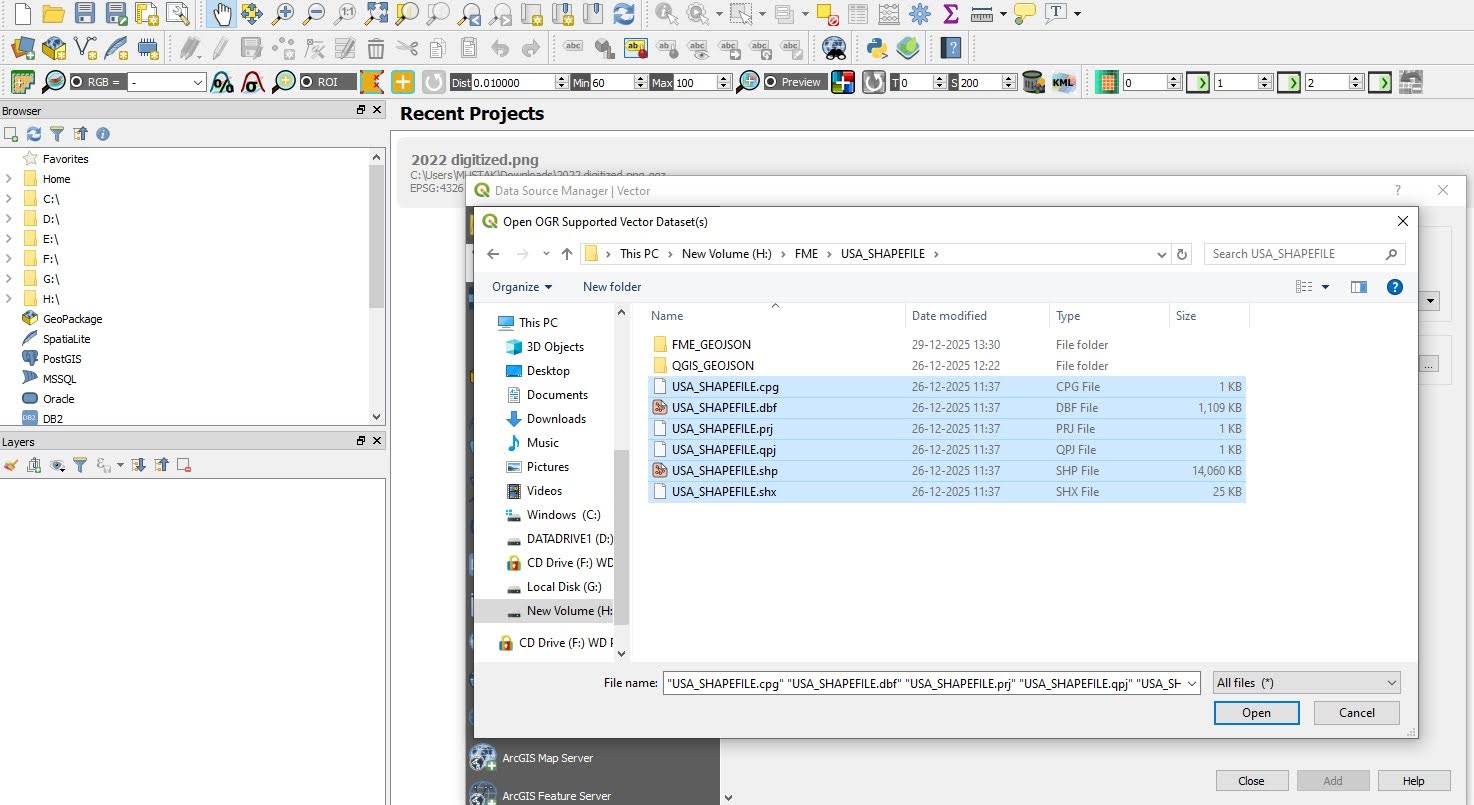
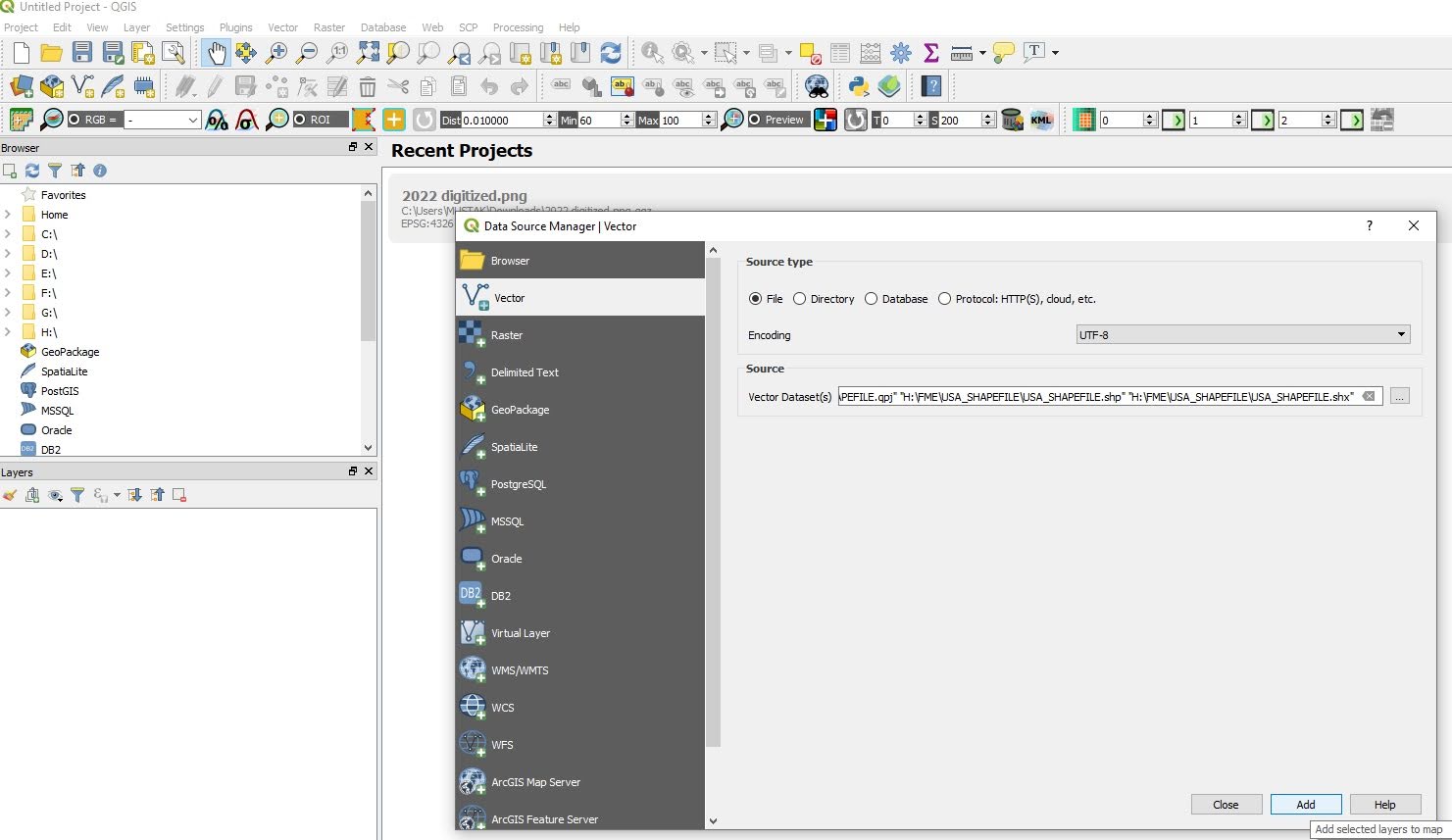
- Select the following options from the menu bar: Layer > Add Layer > Add Vector Layer and then click on your shapefile.
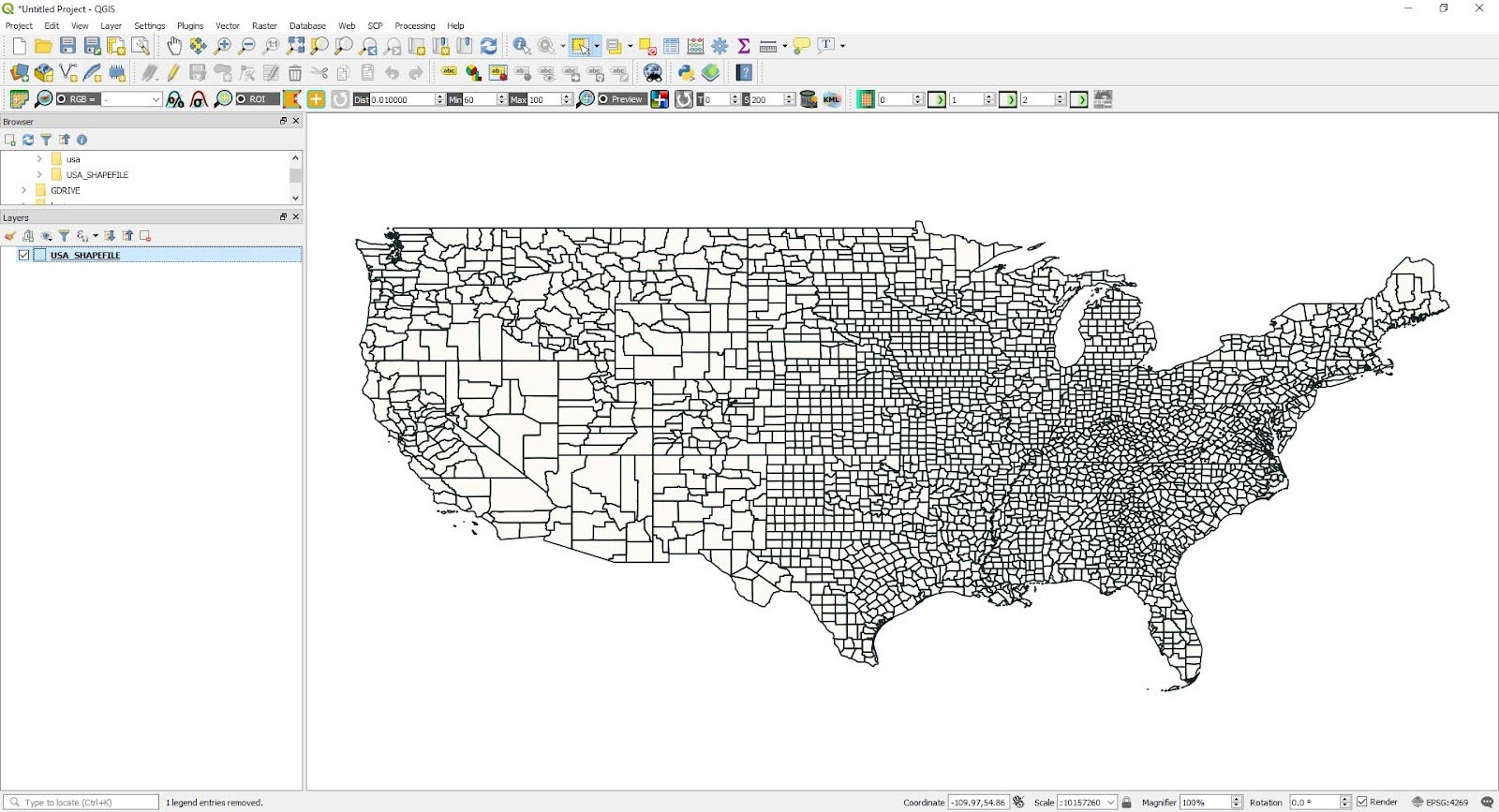
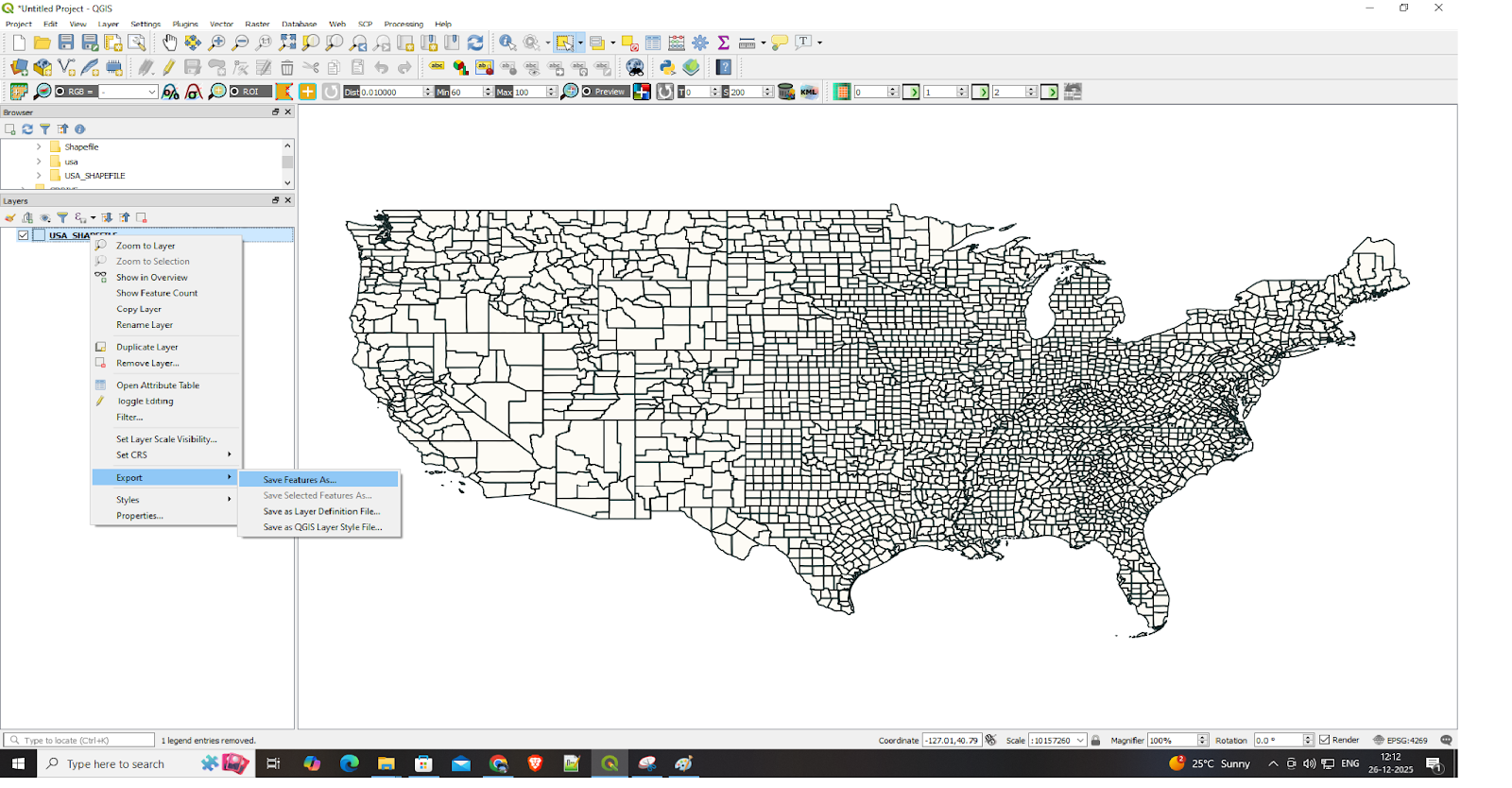
- Right-click the layer in the panel to access the Export function: Export > Save Features As.…
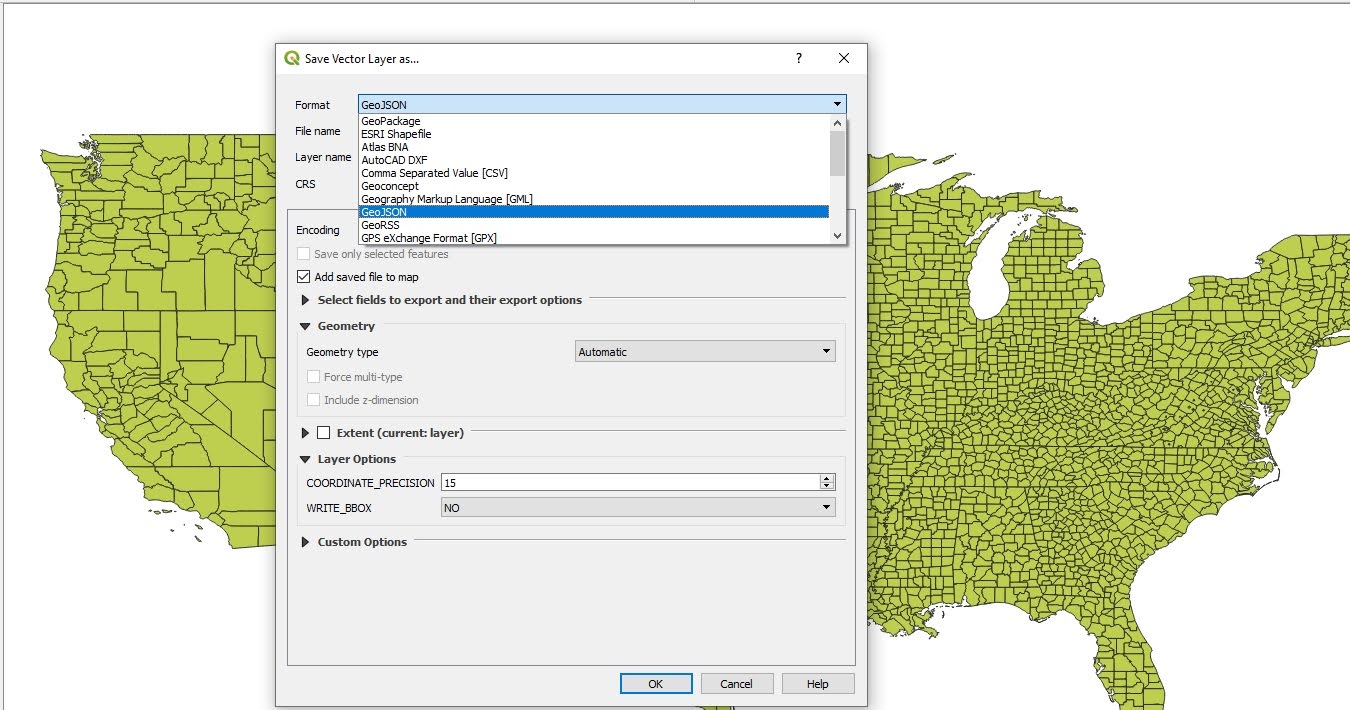
- Select GeoJSON from the dropdown menu and choose EPSG:4326 (WGS 84) as your CRS before selecting your save location and clicking OK.
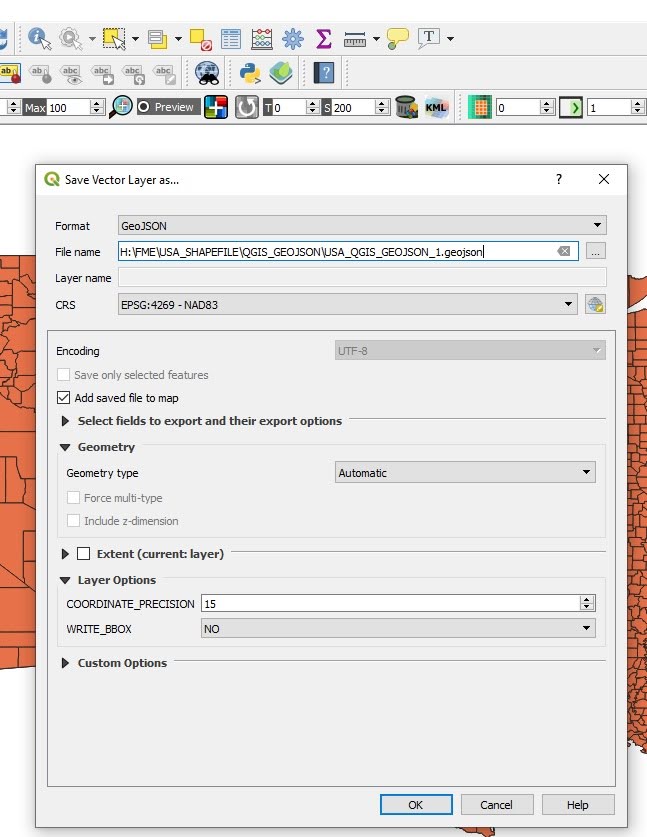
Your GeoJSON file becomes available for web map integration after you finish the process. The user interface presents a straightforward design that brings me satisfaction.
Method 2: Python in Google Colab (for script-happy automators)
QGIS becomes difficult to use when you need to handle numerous files while performing automated tasks. The following method uses Python in Google Colab and is intended for users who are comfortable with scripts.
Python serves as the essential tool for data science work. Google Colab provides users with cloud-based code execution through its platform, which requires no software installation. The tool works well for executing batch operations, allows users to perform automatic geometry cleaning, and supports the creation of complex ETL workflows. The combination of this tool with GeoPandas creates an unbeatable combination for users.
Step-by-step in Colab:
- Start by setting up a Python environment where the script can run that supports geospatial libraries such as GeoPandas and Fiona. Create a new notebook that you can start using.
- Install the required libraries.
!pip install geopandas shapely fiona pyproj- Upload your zipped shapefile: .shp, .shx, .dbf, .prj.
from google.colab import files
uploaded = files.upload()- Import libraries.
import geopandas as gpd
import osA Python package called GeoPandas was created to handle geographical data. Adding support for spatial data types and operations expands the capabilities of the pandas library, allowing users to read, write, manipulate, and analyze vector-based geospatial datasets. GeoPandas manages coordinate reference systems, geometry transformations, and attribute data within a single workflow and supports popular GIS formats such as Shapefiles and GeoJSON. The primary functions of loading the shapefile, handling geometries and attributes, and exporting the data to GeoJSON are all handled by GeoPandas.
- Locate the .shp file.
shp_path = None

for file in os.listdir():
    if file.endswith(".shp"):
        shp_path = file
        break

if shp_path is None:
    raise FileNotFoundError("No .shp file found. Please upload a Shapefile.")

print("Shapefile found:", shp_path)- Read the shapefile.
gdf = gpd.read_file(shp_path)
gdf.head()- Check and reproject the CRS to WGS 84.
print("Original CRS:", gdf.crs)

if gdf.crs is None:
    raise ValueError("CRS is missing. Define the source CRS before reprojection.")

gdf = gdf.to_crs(epsg=4326)
print("Reprojected CRS:", gdf.crs)- Fix invalid geometries.
gdf["geometry"] = gdf["geometry"].buffer(0)
print("Geometry validity check:")
print(gdf.is_valid.value_counts())- Export and download.
output_file = "output.geojson"
gdf.to_file(output_file, driver="GeoJSON")
print("GeoJSON successfully created:", output_file)
from google.colab import files
files.download(output_file)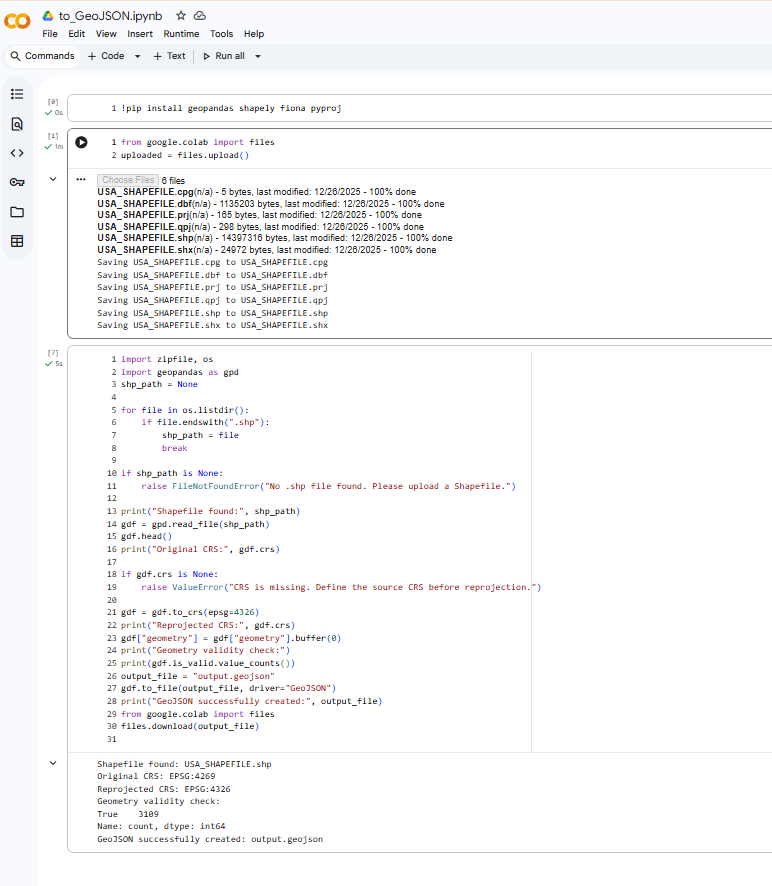
Method 3: FME (the “no-code hero” that is about to change your workflow)
The Python method above provides excellent reproducibility because you can share your notebook to start working with others right away. But, what if CRS mismatches or package version issues start coming up? If you want a process that is free from import errors—and who doesn’t?—the FME method is for you.
The Feature Manipulation Engine (FME), developed by Safe Software, is a data integration platform designed to extract, transform, and load (ETL) both spatial and non-spatial data. It supports a wide range of geospatial formats and provides robust capabilities for data conversion, validation, reprojection, and transformation within a single workflow.
FME uses a visual, drag-and-drop interface that allows users to build complex data pipelines without writing code. It can efficiently process large datasets and is commonly used in enterprise environments where scalability, automation, and data reliability are critical. These capabilities make FME well-suited for organizations that need to manage large volumes of geospatial data, support team-based workflows, and avoid maintaining custom scripting solutions.
FME offers multiple benefits:
- It’s very dependable: No more “invalid polygon” nightmares, thanks to automatic geometry validation.
- Scalability: It easily integrates with AWS, ArcGIS, or PostGIS to process thousands of files in a single night. Additionally, you can have an API for the files.
- Customization: You can modify attributes, make shapes simpler, or even add custom transformers without writing code.
- Convenience: It’s possible to construct reusable workspaces that operate according to schedules, converting one-time tasks into automated workflows.
The interface of FME Workbench offers straightforward functionality.
- Launch FME Workbench (safe.com offers a free trial, if needed).
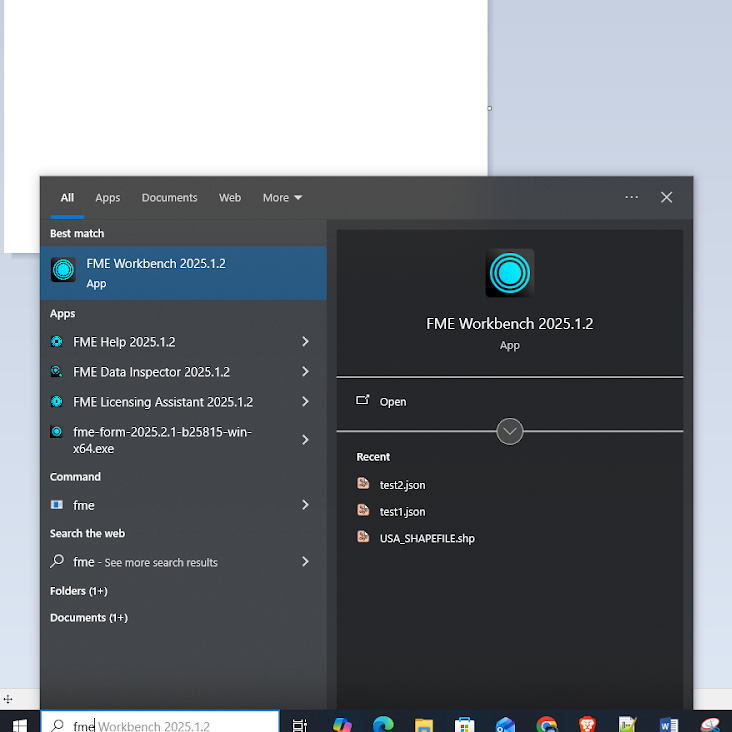

- Click New, then choose your file by dragging it into a Shapefile Reader.
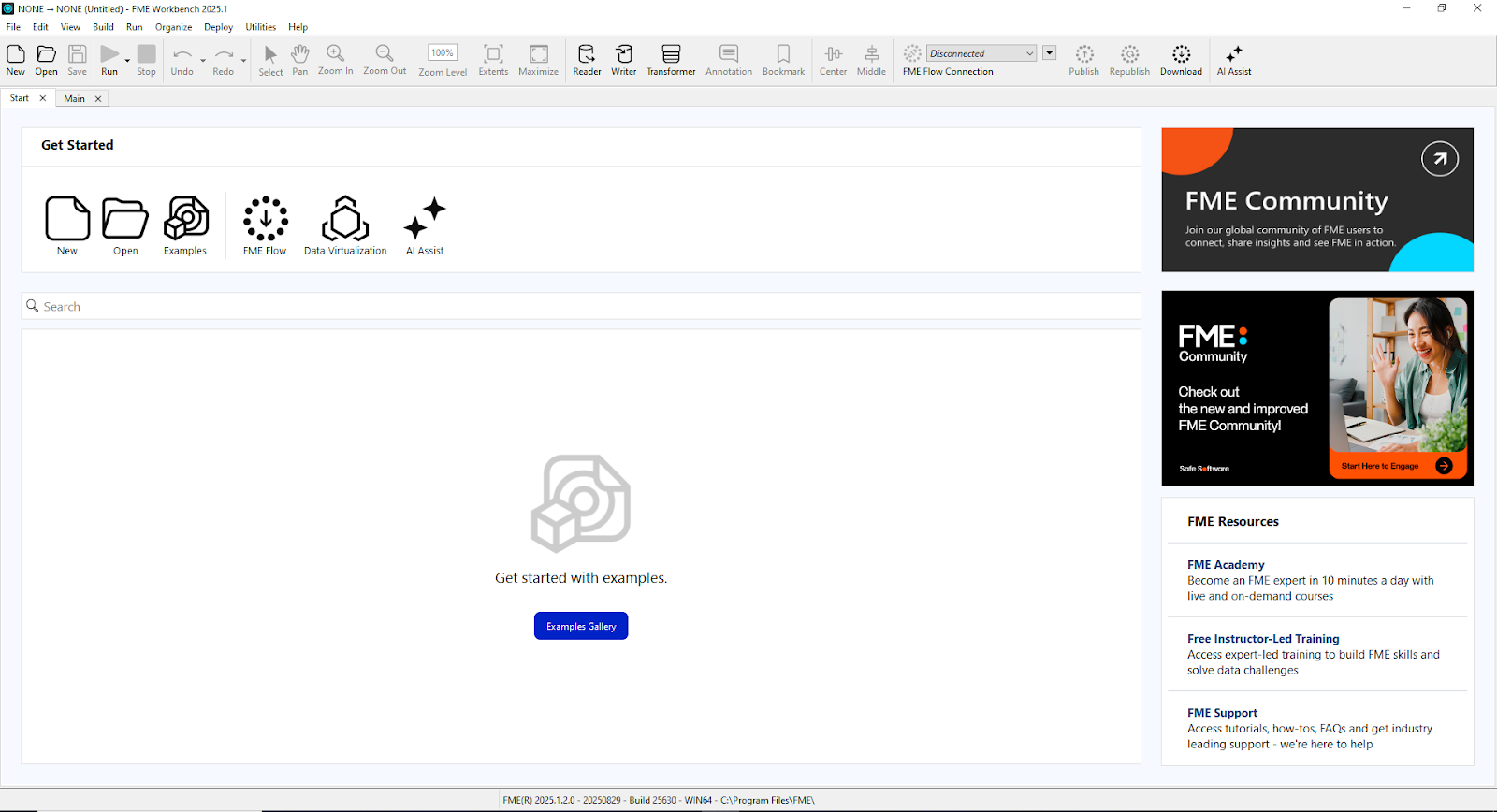
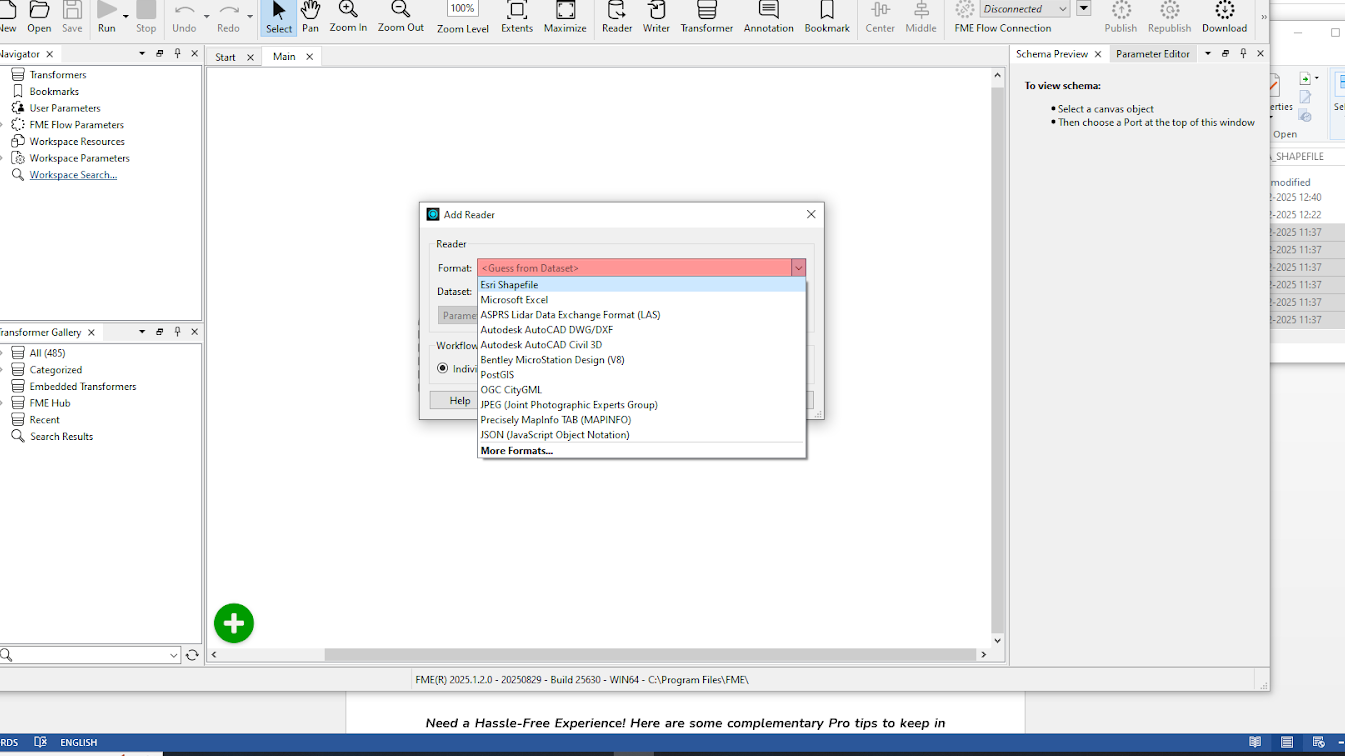
- Select the ESRI shapefile format. Keep everything as the default.
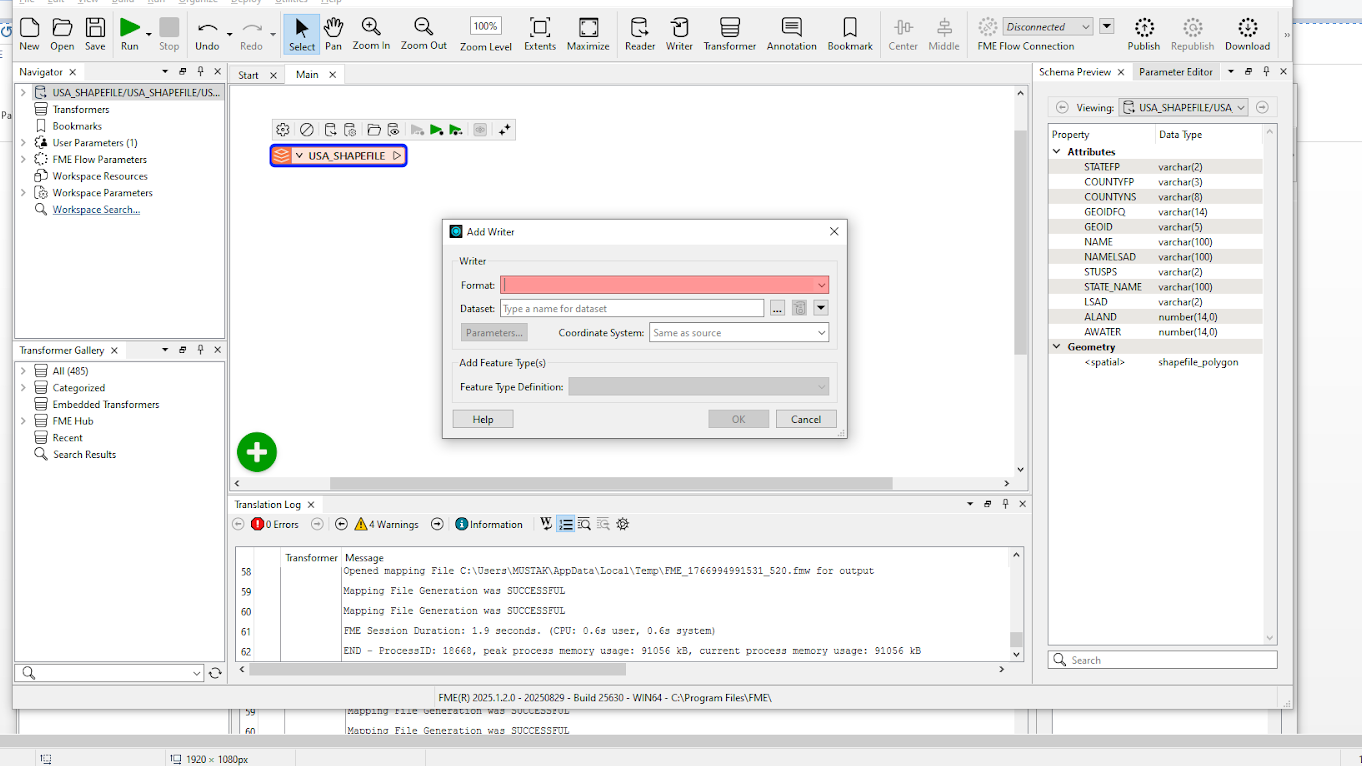
- To automatically fix any design flaws, the Geometry Validator should be included.
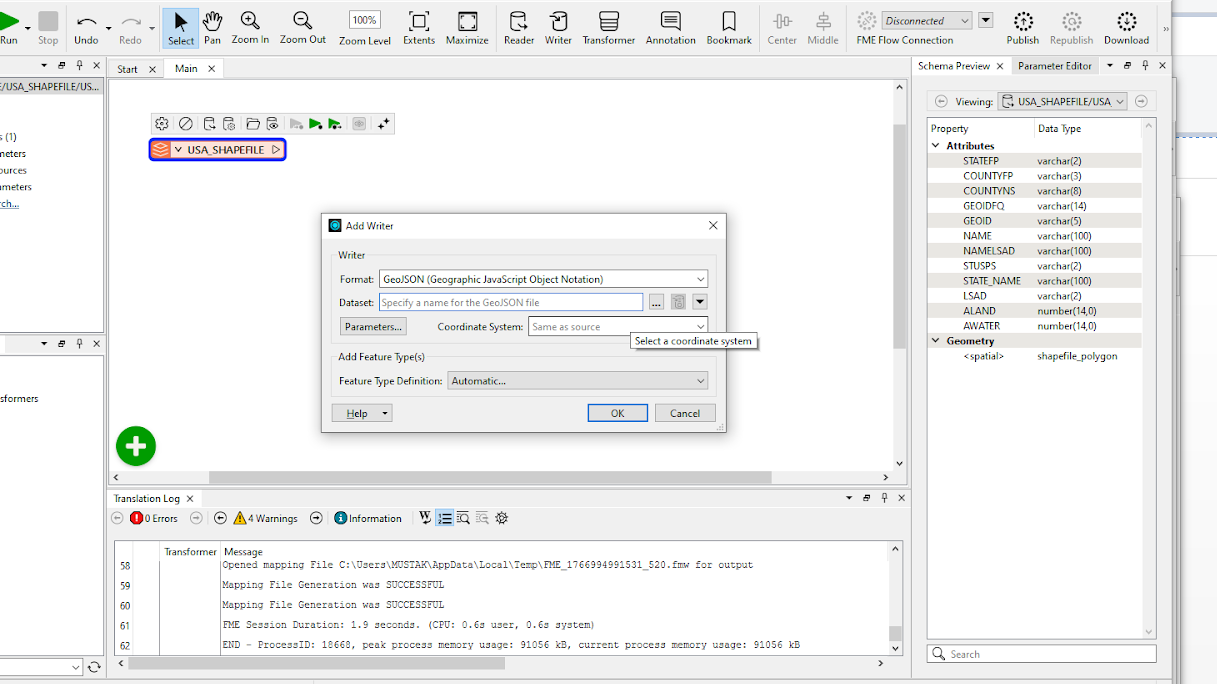
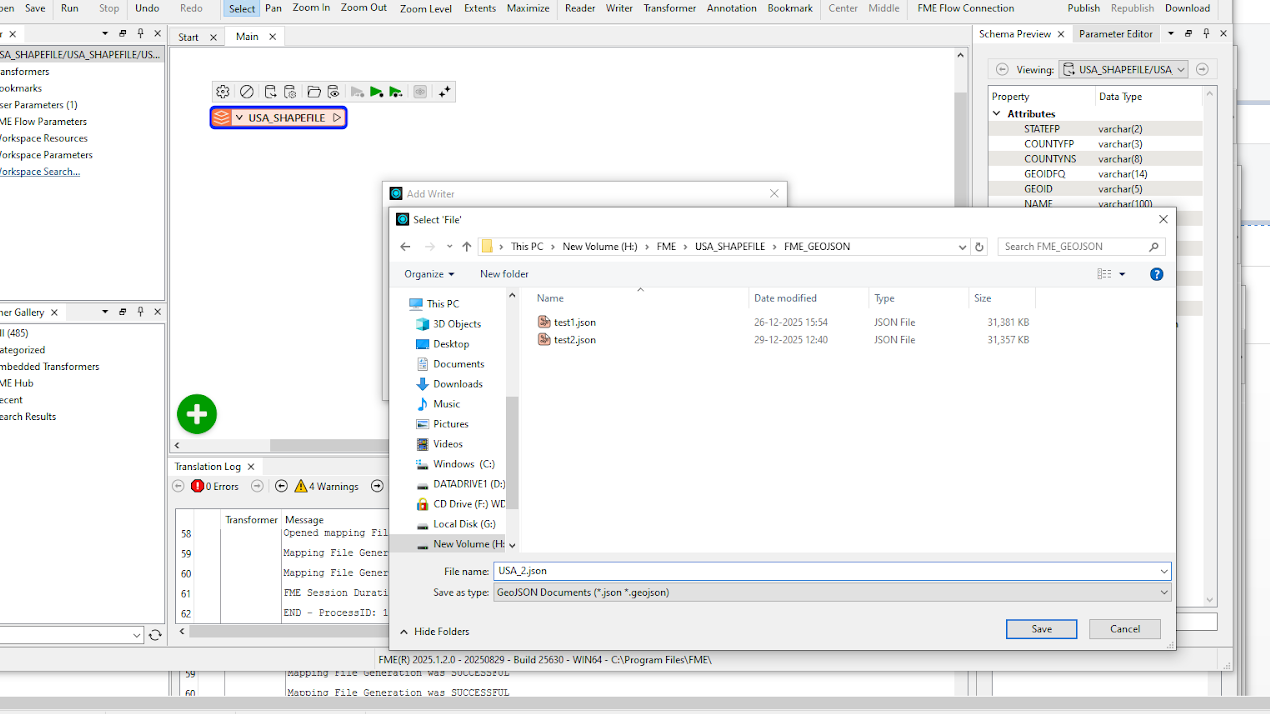
- Now, add a Writer by clicking Writer, selecting GEOJSON as your format, and then clicking Save and selecting the desired drive. Keep others as the default.
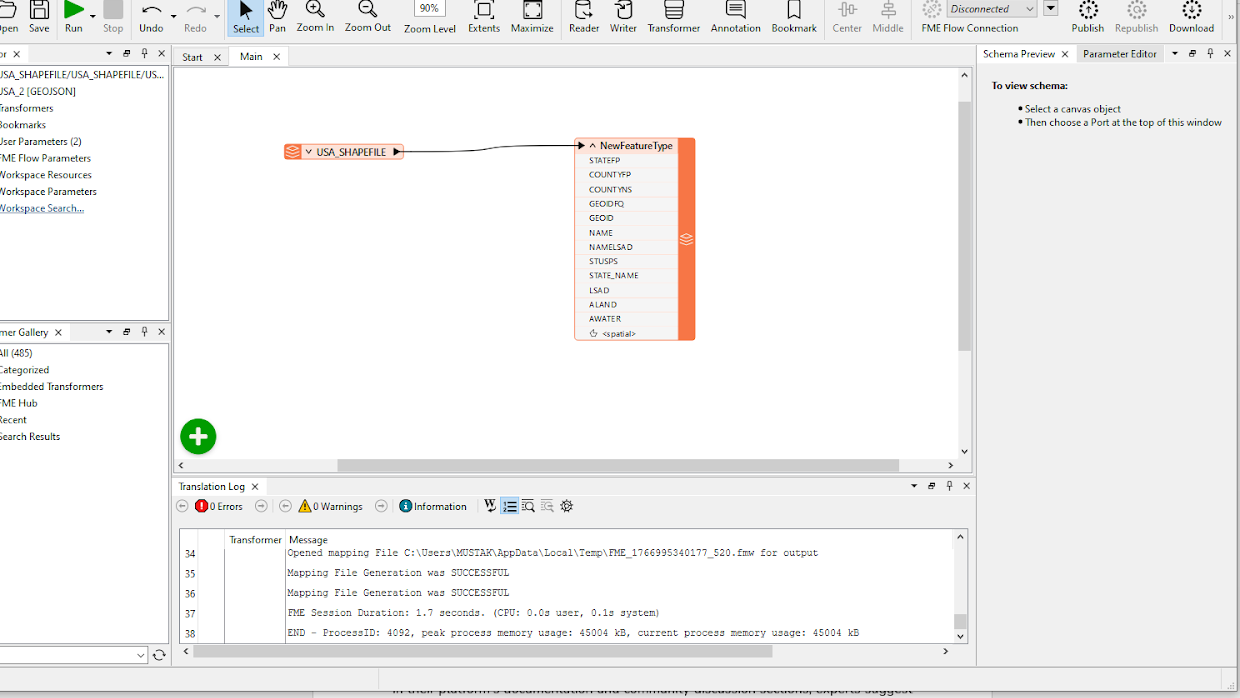
- Before beginning the Run process, you must connect to a GeoJSON Writer. Select the reader, and a line will come out and join it to the Writer.
- To learn about the writer’s built-in features, the integrated Data Inspector needs to be thoroughly examined.
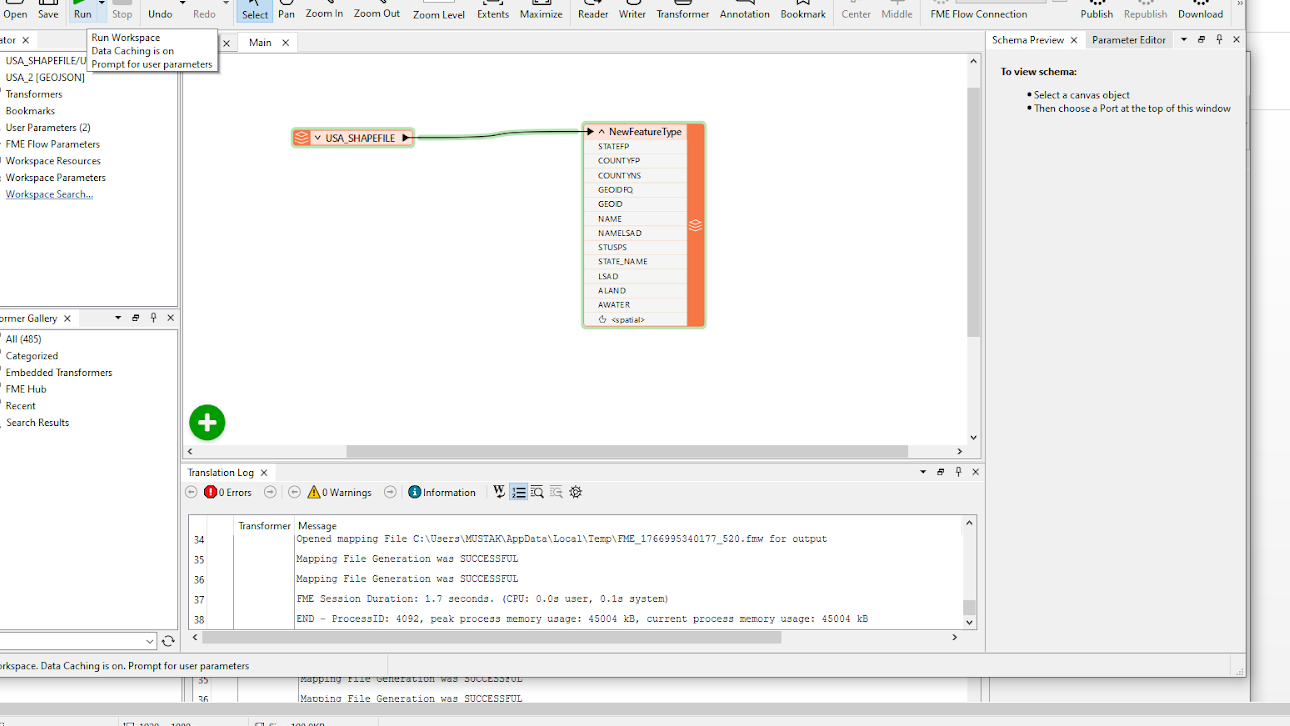
- You will see the save.GeoJSON file at your save location.
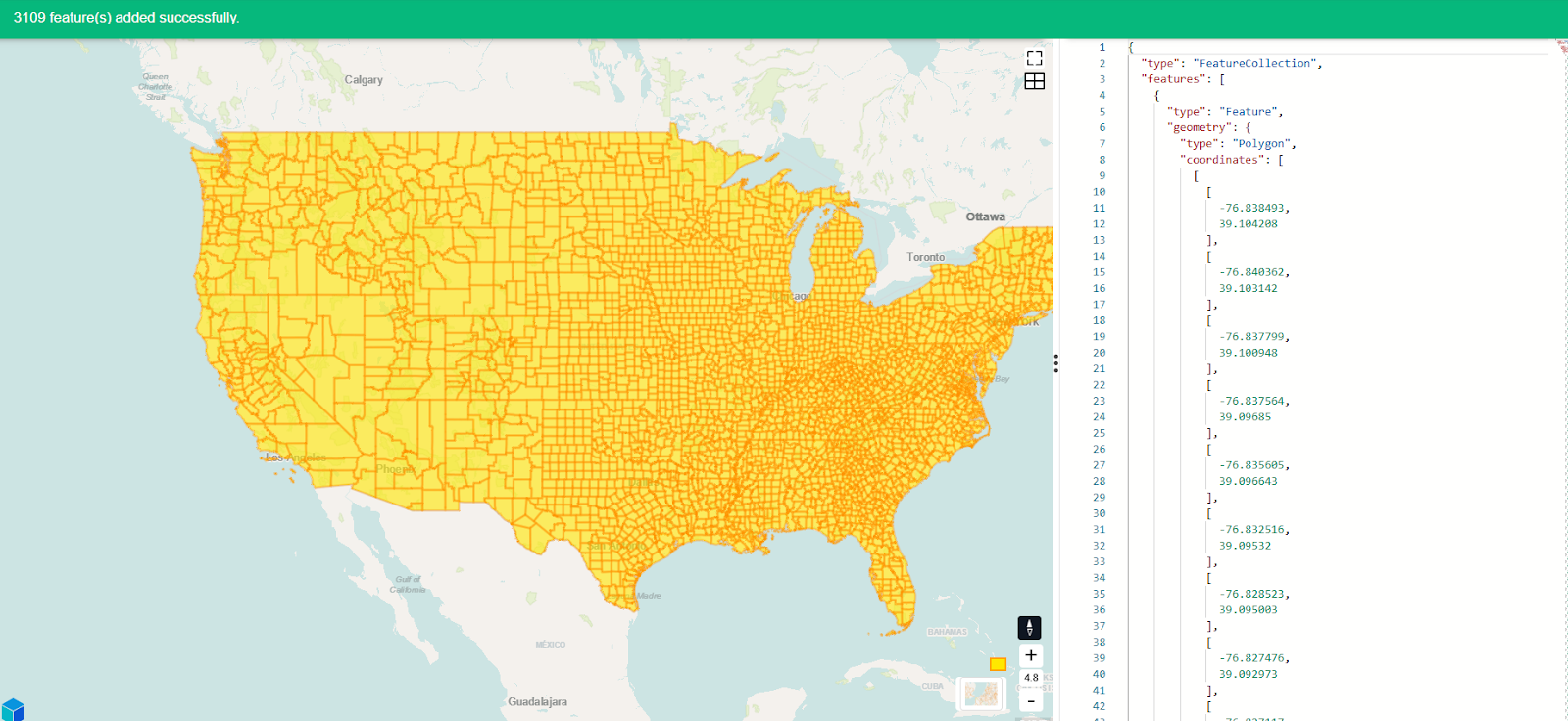
Run the file once, save the workspace, and you’ve got a repeatable recipe. FME enables you to transform complete municipal data collections for web portal implementation without any failures. Curious? The documentation and community discussion sections of the FME platform contain valuable information that will help you use FME to its fullest.
Best practices when converting Shapefiles to GeoJSON
Following a consistent set of best practices helps reduce errors during shapefile to GeoJSON conversion and ensures that the final output is accurate, reliable, and suitable for web-based use. The practices below address common issues encountered during conversion and provide guidance for maintaining spatial integrity and compatibility across modern GIS workflows.
Verify all required shapefile components before conversion
Prior to conversion, confirm that all necessary shapefile components are present. Each of the several dependent files that make up a shapefile is essential to the conversion’s success. Incomplete datasets, lost attributes, or inaccurate spatial positioning can arise from missing components, such as the .prj file for coordinate reference information or the .dbf file for attributes.
Reproject data to WGS 84 (EPSG:4326)
The majority of GIS APIs and web mapping platforms require spatial data to be in WGS 84 (EPSG:4326) geographic coordinates. Reprojection should be done early in the workflow to prevent downstream compatibility problems, misaligned layers, and improper feature placement. In addition to making integration with web-GIS frameworks easier, standardizing the coordinate system at the outset lowers the possibility of projection-related errors.
Validate and review the final GeoJSON output
Visual validation is still an essential step even after a conversion is successful. Geometry accuracy, attribute integrity, and overall structure can be quickly verified by loading the resulting GeoJSON into a web-based viewer like Kepler.gl or a straightforward Leaflet map. This step helps you identify subtle issues such as missing fields or broken geometries before data is sent to production systems.
Maintain clean and consistent attribute field names
Field names are crucial to how applications and APIs use GeoJSON data. Compatibility with web frameworks and downstream processing tools is enhanced by using clear, consistent naming conventions that avoid spaces, special characters, and excessively long names. Additionally, well-structured attribute names facilitate comprehension and long-term maintenance of the dataset.
Document the conversion steps for reproducibility
To ensure reproducibility, document the conversion workflow. Basic documentation is beneficial for even simple conversion workflows. To ensure that the procedure can be reliably repeated in the future, it is helpful to document the tools used, the reference systems used, and any data transformations performed. When datasets are shared between departments or agencies, clear documentation facilitates team collaboration and offers transparency.
Last thoughts
Your path now leads you from working with Shapefiles to achieving GeoJSON success. QGIS serves as the user-friendly starting point, while Python in Google Colab functions as an adaptable, powerful tool, but FME remains the robust, enterprise-level option. The tool is a game-changer that grows alongside your business expansion from individual hacking operations to large-scale corporate operations. The free trial of FME lets you explore its features in detail. The first successful conversion will make you addicted to transformers, leading you to discover automated workflows and question how you got by without FME.
Continue reading this series
Spatial Computing
Learn the basics of spatial computing and its benefits, key applications, and practical examples for processing spatial data using low-code frameworks like FME and traditional GIS software.
KML To GeoJSON
Learn about converting KML to GeoJSON files, including methods, best practices, and key differences between the two spatial file formats.
Geospatial Data Integration: Best Practices
Learn about the importance of seamless integration of diverse geospatial data sources and the challenges, best practices, and workflows involved in achieving accurate mapping and analyses for decision-making.
Shapefile To GeoJSON: Best Practices
Learn three proven methods to convert shapefiles to GeoJSON for modern web mapping applications.
Digital Twin Examples
Learn how digital twin examples are reshaping manufacturing, cities, hospitals, and farms with real-time data.
Augmented Reality Databases
Learn the key database types, data requirements, and best practices for building production-ready augmented reality systems.
MCP Server Geospatial: Tutorial & Implementation
Learn how a geospatial MCP server connects AI agents to spatial tools reliably and at scale.
Spatial Data
Learn how spatial data models, formats, and no-code automation tools simplify complex integration workflows.
What is Geospatial Data
Learn geospatial data fundamentals, real-world use cases, pipeline implementation steps, and best practices using FME.
Digital Twins in Manufacturing
Learn what digital twins are, their manufacturing use cases, and how to tackle data integration challenges while digital twins effectively.
Digital Twins in Urban Planning
Learn how digital twins in urban planning enable real-time monitoring, scenario simulation, and smarter infrastructure decisions.
GeoPandas
Learn how GeoPandas loads, validates, and joins vector data in a complete point-in-polygon workflow.
Geographic Data
Learn what geographic data is, how it works, and best practices for managing spatial data workflows.
Visual Spatial Intelligence
Learn how production systems combine spatial data and geometry to answer real-world measurement questions reliably today.