

Key takeaways:
- In FME Form, check the translation log, turn on feature caching to inspect data at each stage of the workspace, check feature counts, and use Data Preview.
- In FME Flow, check the job log and walk through the top points of failure.
- Check the FME Community for similar issues, and don’t hesitate to ask for help if you’re really stuck.
If you use FME regularly, you’ve likely encountered scenarios where your workspace runs, but the output isn’t what you expected. Or perhaps it fails with an error message that doesn’t immediately point to a solution.
Unfortunately, this is an unavoidable part of working with real-world data: it doesn’t always behave exactly as expected, which necessitates debugging and troubleshooting your workflows.
This post offers a practical guide to debugging both FME Form and FME Flow with confidence. For a deep dive into this topic and live demos, watch our webinar, A Practical Guide to Debugging Your FME Workflows with Confidence.
To start, here’s a basic checklist to follow when something goes wrong. This will save you time and prevent new issues from being introduced while you’re trying to fix another.
- Reproduce the issue.
- Reduce complexity.
- Test one change at a time.
- Identify the root cause.
There are specific steps you can take in FME Form and FME Flow, so let’s get into it.
Debugging in FME Form
When working in FME Form, most issues can be resolved using four core tools. Mastering these will solve the majority of problems you encounter.
1. The Translation Log
Always begin with the log. It tells you where the issue occurred, which transformer was involved, and whether features were rejected. Warnings are particularly useful for solving mystery issues.
Also remember: a successful translation doesn’t guarantee correct output. The log confirms execution, not logic.
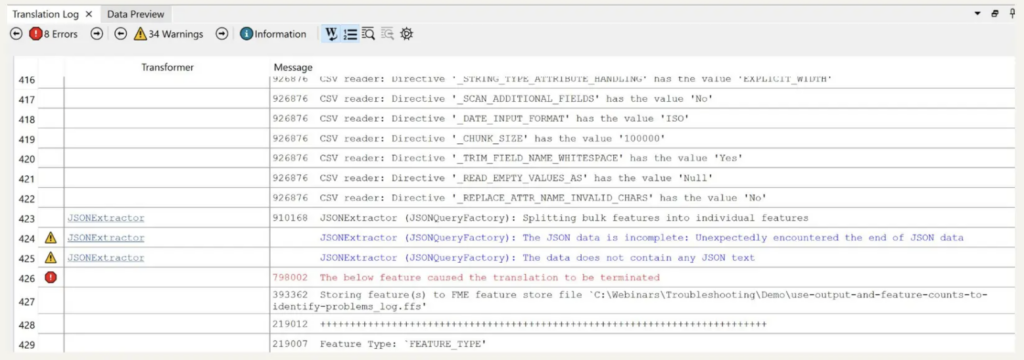
2. Feature Caching
Be sure to turn on Feature Caching. This lets you inspect data at each stage of your workspace without re-running everything.
Instead of guessing what a transformer did, you can see whether expected attributes exist, whether values are null, whether features were rejected, and how geometry changed
This removes assumptions and shows you exactly what’s happening.
3. Feature Counts
Feature Counts quickly reveal where data changes unexpectedly. If something looks wrong at the end of your workspace, work backward until the input/output numbers stop matching expectations. That’s usually where filtering, joins, or spatial logic diverged from what you intended.
A workspace can run “successfully” while still producing incorrect results. Feature Counts expose that immediately.
4. Data Preview
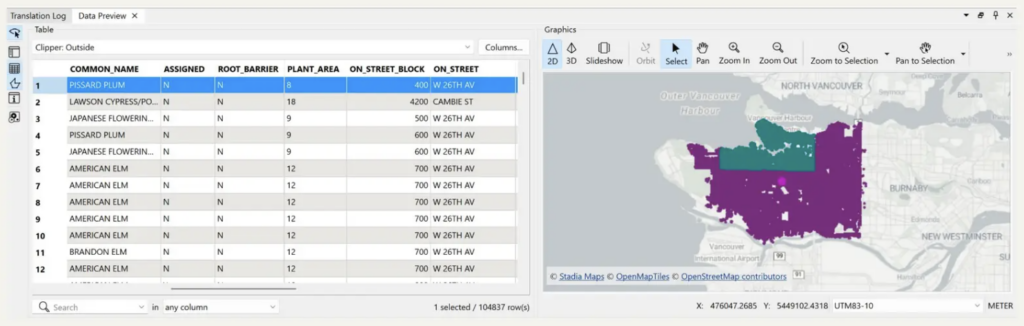
Use Data Preview to validate attribute values, geometry types, coordinate systems, and spatial alignment. Many spatial issues are projection mismatches, for instance. If two datasets don’t share the same coordinate system, spatial operations may return empty results without errors.
Previewing early prevents debugging later.
Debugging in FME Flow
The first rule of debugging in FME Flow is to make sure a workspace runs in FME Form first. If a workspace runs in Form but fails in Flow, the issue is often environmental.
1. Job log
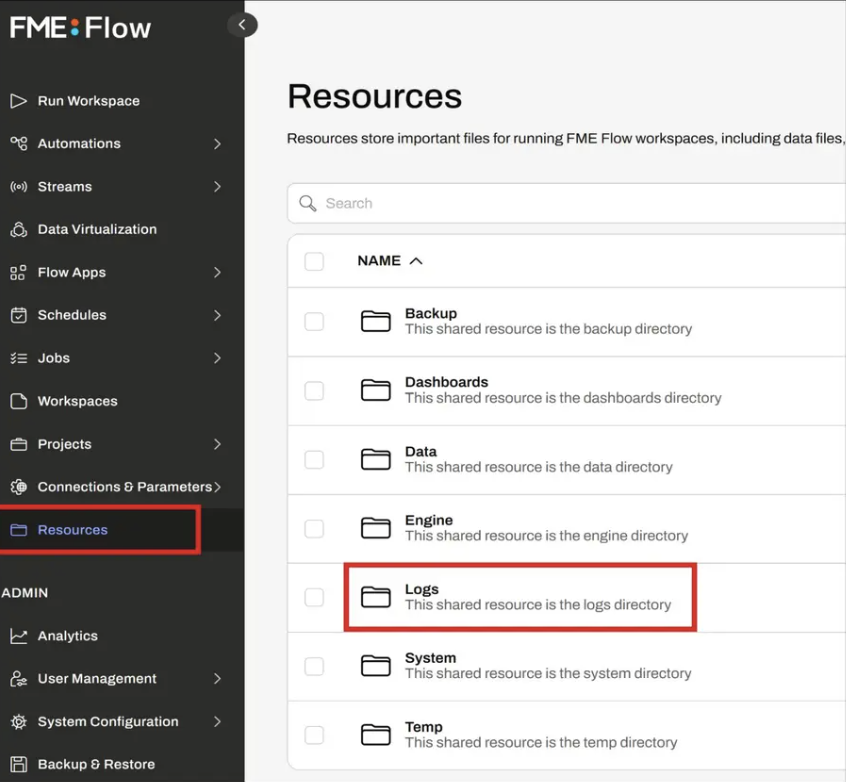
Start with the FME Flow job log. Scan it for missing file paths, permission errors, connection failures, or differences between environments.
A common example is local file paths. A file that exists on your desktop in Form won’t exist on the Flow server unless it’s uploaded or stored in a shared location. From Flow’s perspective, that path simply doesn’t exist.
2. Walk through common points of failure
Other common Flow checks include:
- Confirming services are running
- Verifying service account permissions
- Reviewing network or REST API errors
- Checking known issues for your version
Always compare the Form log and the Flow log when diagnosing differences.
Learn more
You don’t have to troubleshoot alone! Check the FME Community, and you might be surprised to find that someone else has had a similar issue and shared the solution. You can also make a post to ask for help. It’s also worth reviewing our Known Issues documentation.
If you’re still stuck, we invite you to submit a support case with clear reproduction steps. Include your FME version, operating system, and relevant log snippets.