

Microsoft Excel is the standard for serious tabular data work, and spreadsheet skills are among the most valued in almost every business. But most organizations use it for basic calculations, a few charts, and some manual analysis, which is a fraction of what it’s capable of.
When you connect Excel to a data integration platform like FME, you can take that data so much further. Turn a spreadsheet into a map, merge it with other systems like GIS and cloud services, run a data validation workflow every time new data arrives, and even connect your Excel data to virtually any AI service.
Here are eight FME-powered spreadsheet automations to inspire you.
1. Visualize the spreadsheet as a map
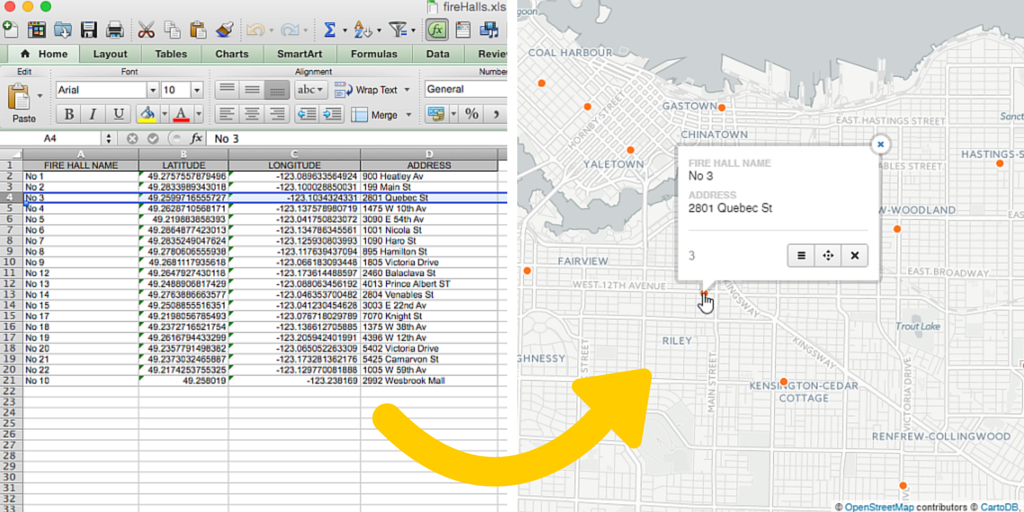
Excel data is tabular, but it often contains location information like addresses, coordinates, region names, or asset IDs. By reading a spreadsheet the same way you’d read a spatial dataset, you can surface geographic relationships that would otherwise stay buried in the rows. A map is worth a thousand spreadsheet rows.
Tabular data can be made spatial in a few ways:
Convert coordinates to geometry. FME automatically converts X/Y or latitude/longitude values into points, enabling you to visualize a spreadsheet without any additional processing steps.
Geocode addresses. If your data contains addresses rather than coordinates, you can use the Geocoder to place it on a map. A range of geocoding services is available, including Esri ArcGIS, Google, OpenStreetMap, and more. Helix Water District, for instance, uses geocoding to validate customer service-request addresses and confirm they fall within district boundaries before any change is processed.
Link to existing geometry. If a spreadsheet has a column like an asset code, a unique ID, or a place name that ties to geometry stored elsewhere, you can join the datasets, and the tabular attributes will link to those existing spatial features.
2. Consolidate many files and sheets into one
This is one of the most common (and tedious) spreadsheet jobs in any organization. Combining them by hand means endless copy-paste or complicated workarounds.
With FME, a workflow can read every file in a folder and append the data into a single output. It can capture the source file name or sheet name as a new column, align columns by header even when the source files don’t agree on order, reconcile schemas that have drifted apart over time, and skip or flag the rows that don’t fit. Because it’s a repeatable workflow, you build it once and rerun it whenever new files arrive, rather than repeating the same manual steps every time.
3. Sync Excel with your databases and business systems
Spreadsheets rarely live in isolation. The data in them usually needs to come from or go to another system, such as a SQL database, a CRM like Salesforce, a data warehouse like Snowflake, a GIS, or an ERP. Doing this by hand is slow and error-prone, and most point solutions only connect one specific spreadsheet to one specific system.
FME connects Excel to hundreds of databases and applications, in either direction, and lets you transform the data in flight so it lands in exactly the shape the destination expects. You can load spreadsheet rows into a database, generate up-to-date spreadsheets from live system data, or keep the two synchronized on a schedule. Pair that with change detection and a workflow can update only the records that actually changed, so a nightly or hourly sync stays fast even as the data grows.
4. Merge Excel workbooks with other data sources
Most businesses store their data across a patchwork of formats: rich spreadsheets, databases, GIS and CAD systems, web services, cloud data warehouses, imagery, and more. FME lets you integrate your spreadsheet with data from hundreds of these formats, importing everything into a single workflow and merging it however you choose.
Once your Excel data is part of an integrated workflow, the options for transformation, QA, and analysis are open. For example, you can apply spatial analysis such as point-in-polygon overlays, enrich records with online services for routing, drive-time areas, or geocoding, and run validation checks on geometry and attributes.
5. Transform and validate the data
FME’s library of transformers lets you clean and repair spreadsheet data without touching a formula or a macro: split and concatenate strings, reformat dates, standardize values, deduplicate records, pivot and transpose, and calculate new fields.
You can validate the data against rules you define, such as checking for missing values, out-of-range numbers, malformed addresses, broken relationships, or geometry problems, and route the records that fail into a separate report so someone can fix them. Building this as a workflow means the same quality checks run every single time, rather than depending on someone remembering to do them by hand.
6. Generate reports and load data into templates
Create summaries and statistics sheets by pivoting, transposing, and aggregating your data. For example, you might design a workflow that splits data into separate sheets based on a column’s value, then generates a summary report analyzing the contents. Build that workflow once, and run it as needed.
FME also gives you fine-grained control over the look of the output. Start from a styled template with your predefined formatting, charts, pivots, even an embedded map or logo, and load fresh data into it on demand, so every report comes out polished and on-brand. For high volumes, you can generate these automatically on a schedule, or stand up a self-serve app where anyone in the organization can request a report on demand. When it comes to repetitive work, nothing beats having it done automatically while you get on with something more interesting.
7. Automate your workflows on a schedule or trigger
This is where a workflow stops being something you run and becomes something that runs itself. Once you’ve built and tested a workflow in FME Form, publish it to FME Flow for automation.
You can run a workflow on a schedule or in response to a trigger. Triggers might include a new file landing in a watched folder, an incoming email, a webhook, or a message from another system. A common pattern is to watch for a new or updated spreadsheet, process it the moment it arrives, and email the finished result to the people who need it. You can layer in notifications, error handling, and conditional branching so the automation is production-ready.
FortisBC runs a workflow like this to keep its wildfire threat assessment current: FME Flow refreshes the analysis automatically every two hours to match how often the source data updates, delivering the results to operations staff as reports, Excel files, and other formats.
8. Connect your Excel data to any AI
This is the newest and, for many teams, the most exciting chapter. FME can connect Excel data directly to AI services, including OpenAI, Anthropic, Google, Azure, Amazon, and others, through a growing set of no-code AI connector transformers. You can also run open-weight models locally with tools like Ollama, keeping sensitive data entirely inside your network.
- See also: Getting Started with Any AI in FME
Because the AI call is just another step in the workflow, you can weave it into everything above. A few examples of what that unlocks:
- Enrich and clean records. Have a model standardize messy free-text fields, classify rows into categories, or fill in missing descriptions based on the other columns.
- Summarize at scale. Turn hundreds of rows of raw data into readable summaries. For instance, generating a unique, tailored description for every item in a catalog in minutes instead of hours of manual copywriting. Workspace Group did exactly this: an FME workflow pulls details from their CRM and Google Sheets and feeds them to AI models to write hundreds of unique property descriptions in minutes, replacing hours of manual copywriting.
- Extract structure from unstructured inputs. Point vision-capable models at images or PDFs referenced in your spreadsheet and pull out structured values — reading a meter photo, extracting fields from a scanned form — then validate the result before it’s written back.
- Go the other direction with MCP. Using the Model Context Protocol, you can expose an FME workflow as a tool. That lets an agent work with your Excel-based process safely, returning only the data you choose to expose while your underlying systems stay behind the firewall.
A best practice worth keeping in mind: treat your prompts and tool descriptions as part of the build, enforce structured output where you can, and validate what the AI returns before trusting it downstream. FME is well suited to being that controlled boundary between your data and the model.
Bonus: work with data larger than Excel’s limits
An Excel worksheet caps out at just over a million rows, and long before you hit that ceiling, large files start to crawl. FME lets you do the analysis and manipulation outside of Excel entirely, so file size and performance stop being the constraint. You can slice a huge dataset into manageable subsets, aggregate it down with pivots and statistics, and clean up the values (e.g. reformatting dates, splitting strings) before writing out something Excel can comfortably open.
Get started
For step-by-step guides on how to use Excel in FME, check out our Tutorial: Getting Started with Excel. If you’re brand new to FME, the free FME Accelerator will get you building your first workflow in about 90 minutes.