

Looping used to be a tricky piece of a data integration workflow, but as of FME 2026.2, you can create loops right on the main canvas. This post explains how native looping works, where loops are genuinely useful, how to build and debug them without getting stuck in an infinite loop, and how to tell when an existing transformer will do the job without a loop at all.
What a loop is, and the two kinds you will meet
In programming, a loop runs a block of code repeatedly until some condition is met. In an FME data integration workflow, the idea is the same, except the block of code is a chain of processing steps: features run through the same set of transformers again and again until something tells them to stop.
There are two basic kinds of loops:
- A for loop runs a set number of times, and you use it when the workflow knows the count, such as validating each row of a CSV file.
- A while loop runs until a condition is met, and you use it when you cannot know the number of passes ahead of time, such as growing a buffer around each community centre until it contains enough nearby parks.
What changed in FME 2026.2
In FME 2026.1 and earlier, every loop had to live inside a custom transformer. In FME 2026.2+, a loop is simply a block on the main canvas. Select the transformers you want to repeat and click Loop on the toolbar (or press Ctrl+L, or right-click and choose Create Loop). Connect the input of the first transformer to the loop output port in the lower left of the block, and send any features that need another pass to the loop input port in the lower right. Features routed anywhere else leave the loop, and when no features come back to the loop input, the loop ends.
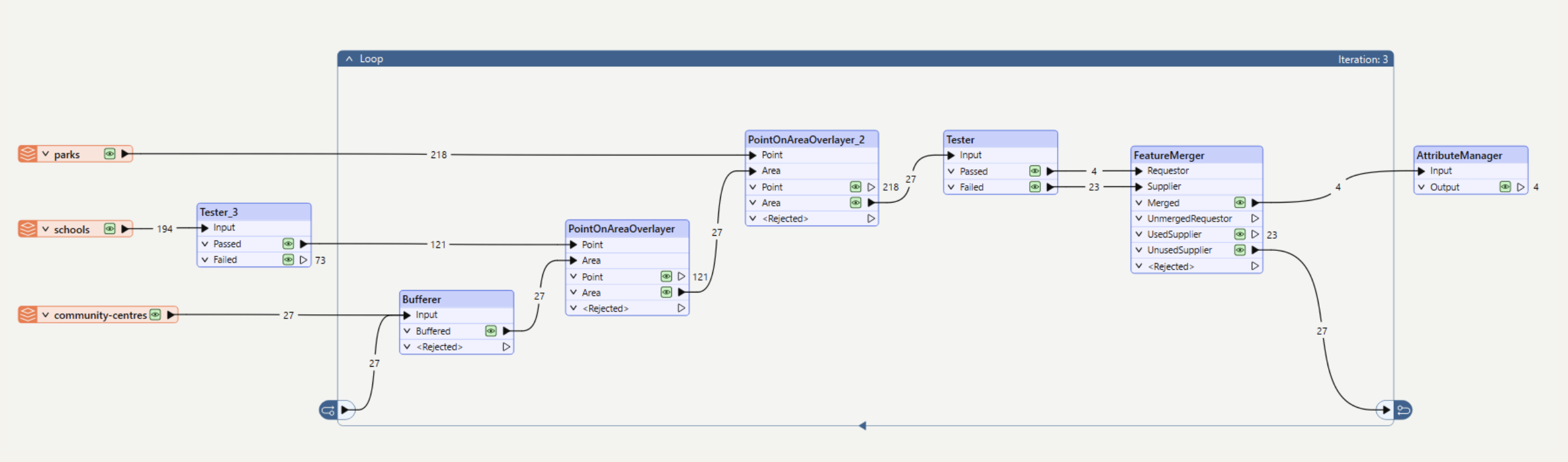
A few notes:
- You can set a Loop Limit (the maximum number of passes) in the loop parameters.
- The live iteration count is displayed in the loop’s title bar while the workspace runs.
- Blocking transformers work inside native loops with no extra steps.
- Loops can be nested, and a workspace can contain multiple loops.
- Each loop block has a single loop input port, but multiple output streams can exit the loop.
- Existing loops built with custom transformers can be migrated to the new approach, and a native loop can be exported to a custom transformer if you want to reuse it.
Native looping is not a guaranteed runtime speedup over the custom transformer approach. Runtime still depends on the transformers inside the loop, data volume, grouping, and your loop logic. The gains are in design, maintenance, and debugging, because everything is visible in one place.
- For a deep dive into this topic and live demos, watch our webinar, Introducing a New Way to Loop in FME.
Where loops fit: three common patterns
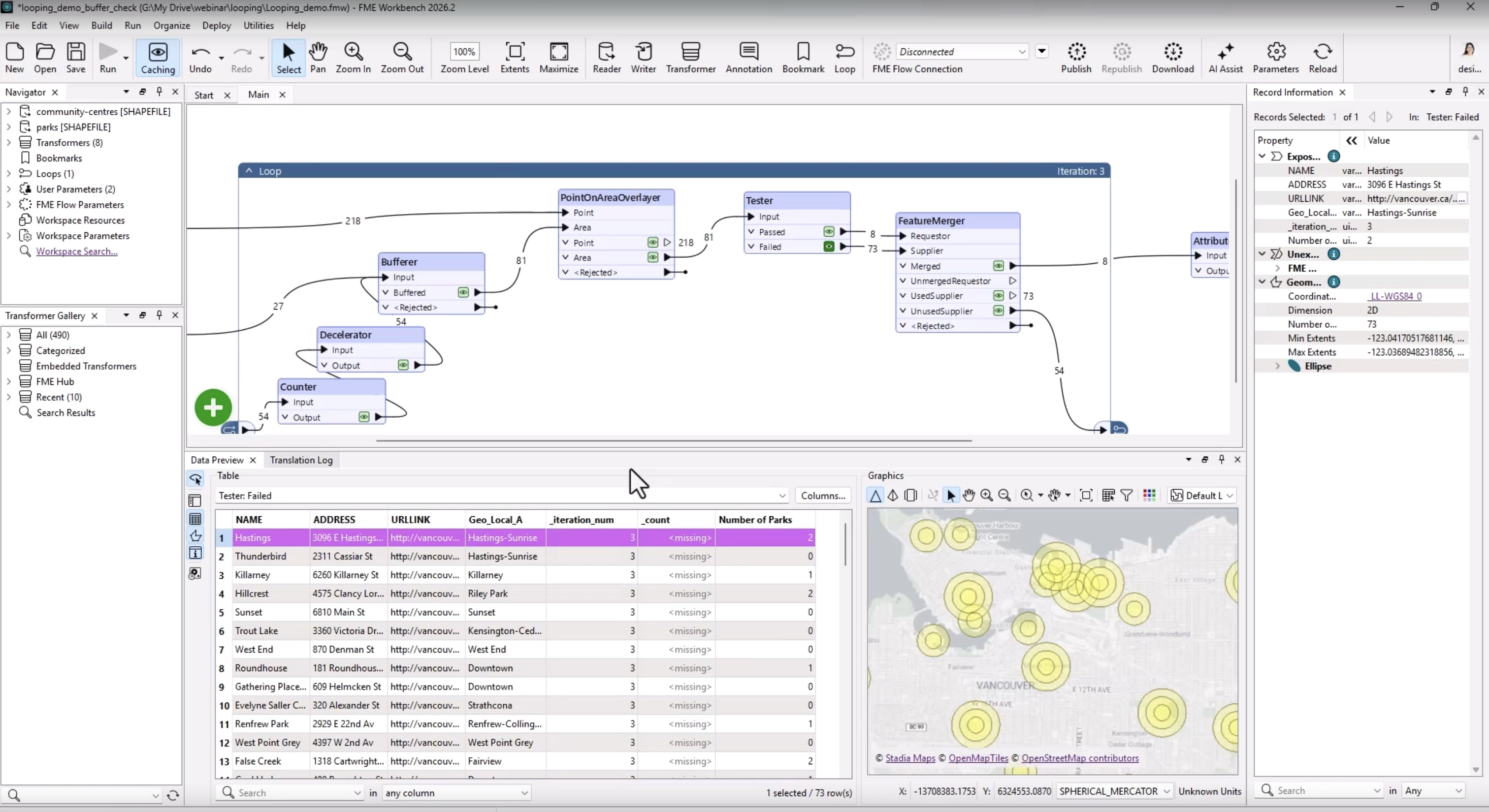
Changing a feature until it meets a condition. In this example, we buffer each community centre in a city, count the parks inside, and enlarge the buffer until it holds at least four. It’s a textbook “while loop” because you cannot know in advance how many passes each centre will need. Features that pass exit the loop; the rest go back with a larger radius. Live data caching (introduced in FME 2026.1) lets you open caches mid-run and watch the buffers grow, and a Decelerator slows things down enough to follow each pass.
Cursor-based API pagination. When an API returns a token pointing to the next page of results, each call depends on the one before it, and you rarely know how many calls you need. A loop around an HTTPCaller, a JSONExtractor, and a Tester handles this cleanly. Two details make or break it. First, set the HTTPCaller’s maximum number of concurrent requests to 1 so calls run in strict order (looping doesn’t work with concurrent requests). Second, do not rely on the cursor disappearing as your exit condition, because some APIs, such as the EU’s TED procurement notices API, keep returning a token after the data runs out. Test the payload instead (for example, an empty results array) and back it up with a Loop Limit.
Iterative AI workflows. Loops suit tasks where a model works toward an answer over several passes. An LLM planner with access to MCP tools can explore an unfamiliar dataset, accumulate what it learns in an attribute on each pass, and set a status that tells a Tester whether to exit or iterate again. Similarly, a vision model can read a large scanned map one region at a time, stepping through a list of search regions in a JSON config until it finds the title and scale. That second example highlights a useful trick: _iteration_num is not just a debugging counter. It is a ready-made index for stepping through arrays, regions, or configuration entries.
Best practices for building loops
Decide whether you need a loop at all. Ask one question first: do I know how many times this needs to run? If the answer is a fixed number, FME probably already handles it. A reader processes every record and stops. A Cloner makes as many copies as you ask for. List transformers walk through a list. Those are for loops you never had to build. The loop block is for the other case, where you run until something changes.
Treat the Loop Limit as a real condition. It is not a safety net you set and forget; it is one of the things that ends the loop, so set it deliberately. If you want to exit earlier, add a Tester and leave on your own terms.
Build it flat, then wrap it. Get the workspace running end to end with zero errors before you add the loop block. A loop does not fix anything; it multiplies whatever is broken, so one bug built flat becomes fifty bugs looped. There is a practical reason too: in 2026.2, a partial run on a transformer inside a loop runs the entire loop. If you need to isolate one step, remove the loop block, debug flat, and wrap it again.
Keep the loop body minimal. Every transformer inside the loop runs on every pass. Readers, AttributeManagers, Testers, and TestFilters that are not genuinely part of the repeating work belong outside the loop.
A debugging toolkit for loops
When a loop is not behaving, these six tools cover most situations:
- A low Loop Limit. Two or three passes while testing gets you output fast and exposes an accidental infinite loop in seconds.
- A Logger outside the loop. Read its output against _iteration_num to see exactly what each pass produced.
- The _iteration_num attribute. It is added automatically, and in Data Inspection it tells you which pass produced any given feature. That is usually the answer to “where did this weird record come from?”
- The live iteration count. It appears in the loop’s title bar as the workspace runs, so you always know where you are.
- The Decelerator. Loops can run faster than you can watch. Slow the flow down when you need to see what happens pass by pass.
- Disabling the loop. The mini-toolbar on the loop’s title bar can disable the entire loop, which quickly answers the question “is it the loop, or the workspace around it?”
One thing to keep in mind: feature count will not match iteration count. Five iterations can easily produce 34 features. The two numbers answer different questions, so do not infer one from the other; check _iteration_num instead.
When a loop never exits
A loop that never ends is almost always caused by one of two things: the data is not changing between passes, or there is no clear condition telling the loop to stop. Work through it in four steps:
- Cap it. Drop the Loop Limit to two or three so you get output to inspect instead of a hang.
- Log it. Log the value your Tester is evaluating on every iteration. If it is identical on pass one and pass three, the condition can never be met.
- Question it. Is there actually a clear condition? Two classic culprits are a Group By mismatch, so the loop is not grouping features the way you think, and an attribute that exists on one branch but not the other, so the test is evaluating against nothing.
- Adjust it. Make one small change, then test again. Change four things at once and you will not know which one fixed it.
If you have done all of that and the behaviour still does not add up, or a loop that worked as a custom transformer fails or slows down noticeably after migrating to a native loop, share the workspace itself on the FME Community or in a support case. A screenshot shows what broke; the workspace shows why.
Do you actually need a loop?
Every transformer already processes features one at a time, which is its own form of loop. Before you build a loop block, check whether an existing transformer does the job:
- Processing each group: use Group By on a group-based transformer.
- Building a collection: use the ListBuilder, ListExploder, or Aggregator.
- Incrementing something N times: use a Cloner plus an ExpressionEvaluator.
- Offset pagination: if the API tells you the total record count and page size, you can compute every offset up front and send all the requests without a loop.
- Following chained values (A points to B, B points to X): try recursive SQL in the InlineQuerier.
- Thousands of files hitting memory limits: use the WorkspaceRunner with a child workspace, so each file gets its own clean run.
Save the loop block for genuinely iterative problems: growing or refining something until it meets a condition, following a cursor, or letting a model work toward an answer. For those, native looping in FME 2026.2 and newer makes loops easier to build, run, and debug, all on the main canvas.