KML To GeoJSON
Within the field of geospatial computing, it is often necessary to convert geospatial file formats. One frequently needed translation is from Keyhole Markup Language (KML) to a GeoJSON file.
KML files are often converted into GeoJSON to use the files in modern web applications. In addition to enhanced web mapping capability, GeoJSON offers better performance, ease of use, and increased readability.
Converting GeoJSON files to KML is often done to interact with older GIS applications and Google Earth. KML can also provide better support with 3D models, richer styling capabilities, and more time-based options.
In this article, we discuss several methods for converting KML files to GeoJSON files, the pros and cons of each method, and whether the same method can be applied in the opposite direction (from GeoJSON to KML files).
Summary of key KML to GeoJSON concepts
| Concept | Description |
|---|---|
| Differences between KML and GeoJSON | KML files are generally larger, XML-based, and support time features and symbology/styling. GeoJSON files are smaller, JSON-based, and don’t natively support time features or symbology/styling. |
| Conversion using Python or R | Programming languages like Python and R support frameworks that can convert KML to GeoJSON. The Python library kml2geojson is a good start to implement this conversion. |
| Ways to convert KML to GeoJSON: GDAL | GDAL is a terminal utility in Linux that can help convert KML to GeoJSON. However, while it can help in ad hoc experiments, integrating this method with a data pipeline is not recommended. |
| Ways to convert KML to GeoJSON: QGIS/ArcGIS/FME | Software products like QGIS, ArcGIS, or FME come with support for converting various geospatial file formats, including KML to GeoJSON. |
| Best practices for converting KML to GeoJSON | Key practices include keeping a backup of the original file, having a good understanding of structural differences between the two formats, validating the post conversion data, optimizing with batch conversion, and watching for lost styling and details. |
Understanding the KML and GeoJSON file formats
Keyhole Markup Language (KML)
KML is based on XML; its files are often distributed in zipped form as ‘.KMZ’ files. The default projection for KML is WGS84 (EPSG:4326). The following example depicts a KML file with an explanation of the tags as comments.
<?xml version="1.0" encoding="UTF-8"?> <!-- This is the opening XML declaration detailing the version of XML being used. No other characters or spaces can appear before this.-->
<kml xmlns="http://www.opengis.net/kml/2.2"> <!-- This is the initial KML namespace tag that outlines the source and version.-->
<Document> <!-- The Document tag contains all of the additional tags in the KML file.-->
<Placemark> <!-- The Placement tag defines the point, line, or polygon on the map. It frequently contains a name and description tag. Each individual geometry is a "Placemark."-->
<name>New York City</name> <!-- This tag defines the name of the geometry.-->
<description>New York City</description> <!-- This tag provides a description of the geometry.-->
<Point> <!-- The tag indicates that the geometry is a point, and the following coordinates will be of a point.-->
<coordinates>-74.006393,40.714172,0</coordinates> <!-- Opening and closing coordinates tags that indicate the point's longitude, latitude, and altitude.-->
</Point> <!-- Closing Point tag-->
</Placemark> <!-- Closing Placemark tag-->
</Document> <!-- Closing Document tag-->
</kml> <!-- Closing KML tag-->GeoJSON
GeoJSON is a format for encoding a variety of geographic data structures that is based on the JavaScript Object Notation (JSON) format. It consists of a collection of key-value pairs and supports the following geometry types: Point, LineString, Polygon, MultiPoint, MultiLineString, and MultiPolygon. Geometric objects with additional properties are Feature objects; sets of features are contained by FeatureCollection objects. The default projection for GeoJSON is the same as for KML files: WGS84 (EPSG:4326).
{
 "type": "Feature",
 "geometry": {
   "type": "Point",
   "coordinates": [125.6, 10.1]
 },
 "properties": {
   "name": "Dinagat Islands"
 }
}The first “type” tag refers to whether the object is a Feature, a single element, or a FeatureCollection.
Geometry refers to which kind of GeoJSON geometry is being represented. It contains the type information of the GeoJSON object and the coordinates of that object.
- The “type” tag here indicates what kind of GeoJSON object is being referred to and must be one of GeoJSON’s pre-defined types, which include: Point, LineString, Polygon, MultiPoint, MultiLineString, MultiPolygon, or GeometryCollection.
- The tag “coordinates” refers to the points that make up the defined geometry. A coordinate is made up of a latitude value and a longitude value.
The “properties” tag can be used to represent information about the depicted geography. A population count, for example, or a location name.
The “name” tag represents the name of the location at the specified point and is a “property” of the Feature.
Differences between KML and GeoJSON
Aside from differences in format and origin, KML and GeoJSON also differ in features, attributes, and coordinate systems, which can cause complications when converting files from one format to the other.
KML files tend to be larger, more verbose files that are more difficult to read but are compatible with Google Earth and older GIS applications. KML files also support more styling and time features.
GeoJSON files are generally smaller, easier for a human to read, and the format of choice for modern GIS web applications. GeoJSON does offer fewer styling and time support options if not extended with other programs.
The table below summarizes the key differences between these formats.
| Feature | GeoJSON | KML | Potential Complications |
|---|---|---|---|
| File size | Smaller | Larger | Longer conversion/transfer times; storage size and storage latency. |
| File structure | JSON-based and compact | XML-based and verbose | File readability/editability |
| Coordinate system | X,Y,Z correlating to longitude, latitude, and altitude (in that order) | Longitude, latitude, and altitude (in that order) | While both use the long/lat/alt order, some methods might automatically swap long and lat |
| Geometry types | Several, including Point, LineString, and MultiPolygon | Several, including Point, LineString, and MultiGeometry | MultiPolygon and MultiGeometry might not convert accurately |
| Attributes | Properties object | ExtendedData element | May not convert data 1:1 |
| Styling and symbology | Not natively supported | Supported | Styling and symbology may not convert from KML to GeoJSON |
| Projection default | WGS84 (EPSG:4326) | WGS84 (EPSG:4326) | Generally, none, but double-checking projections before and after conversions can help avoid issues later |
| Time support | Not native | TimeSpan and TimeStamp built in | Time data could be lost when converting |
| Web integration | Supported (native for JavaScript APIs) | Limited without conversion | GeoJSON > KML conversion may alter web app functionality if files are replaced |
Methods to convert KML files to GeoJSON files
There are several ways to convert KML files to GeoJSON files. In this section, we explain several methods and their advantages and disadvantages. GDAL Method (KML to GeoJSON)
Using the Geospatial Data Abstraction Library (GDAL) is a very common way to interact with geospatial data of all kinds. GDAL is a computer software library for reading and writing raster and vector geospatial data formats.
Start by downloading GDAL from its source.
Use the terminal to run the program to convert KML to GeoJSON:
ogr2ogr -f GeoJSON output.geojson input.kmlGDAL can also be used to convert GeoJSON to KML using a command like this one:
ogr2ogr -f kml output.kml input.geojsonUsing GDAL with the terminal is well-suited for quick experiments and testing. However, GDAL can also be automated and integrated into development, testing, and data pipelines using Python bindings, which are generated by default when building GDAL from source or by using ogr2ogr scripts.
Direct programming method
Several programming languages have the ability to convert geospatial data files, including R, C#, Java, and Python. Python is one of the most popular and widely used programming languages. With the appropriate packages installed, it can be used to convert KML files into GeoJSON files and perform other conversions and analyses of geospatial data. Geopandas is a popular library for doing so.
Using Python (KML to GeoJSON and GeoJSON to KML)
Here is an example of Python code using geopandas to batch convert KML files to GeoJSON files and vice versa. Note that geopandas is dependent on GDAL/OGR, which should be installed and imported as well. GDAL can be installed via pip with the command “pip install gdal”:
import os
import gdal
import ogr
import geopandas as gpd

directory = 'path_to_directory'
for filename in os.listdir(directory):
    if filename.endswith('.kml'):
        gdf = gpd.read_file(os.path.join(directory, filename))
        gdf.to_file(os.path.join(directory, filename.replace('.kml', '.geojson')), driver='GeoJSON')
    elif filename.endswith('.geojson'):
        gdf = gpd.read_file(os.path.join(directory, filename))
gdf.to_file(os.path.join(directory, filename.replace('.geojson', '.kml')), driver='KML')The snippet shown here uses the geopandas library to read the KML file and convert it to GeoJSON using the to_file function within the geopandas library.
If “import gdal” or “import ogr” does not work, try replacing it with:
from osgeo import gdal
from osgeo import ogrPython-based conversion is suitable for all integrations but has a learning curve. It is better than the terminal-utility-based conversion with only GDAL, since Python can easily be integrated with any application and can be used even when there is no Unix terminal available.
Desktop-software-based methods: QGIS, ArcGIS, etc
There are several software platforms used in the geographic information system (GIS) space that are capable of displaying and converting geospatial data, most notably ArcGIS, QGIS, and FME. ArcGIS is proprietary and owned by ESRI, while QGIS is free and open source. Both QGIS and ArcGIS are used to upload, display, and manipulate geographical data.
Using FME (KML to GeoJSON)
FME stands for “Feature Manipulation Engine” and is a platform developed by Safe Software as an “all-data, any-AI platform” for enterprise data management. The platform is built for professionals in the GIS space and caters to those who may not be coders or familiar with using the command line, only requiring an understanding of the platform itself to be useful.
FME is a no-code platform with the flexibility to allow users to write code to expand its capabilities and optimize workflows to specific user needs. FME can also integrate AI into user workflows and is AI platform agnostic. FME can manage geospatial data, which includes converting files between different geospatial formats.
FME workflows can be used to perform single and batch conversions and can integrate these conversions into larger workflows. Here is a walkthrough for using FME to convert KML to GeoJSON files and vice versa:
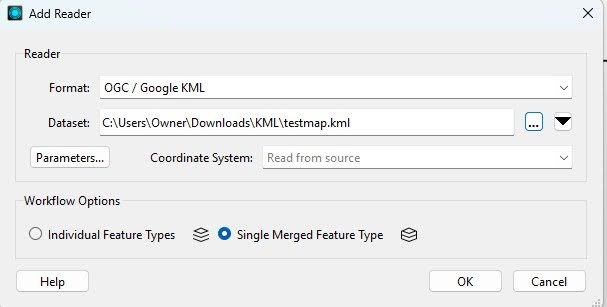
- To begin, initialize a Reader instance and set the source path to your KML file. Ensure that you select OGC/Google KML as the format. In the dataset field, select the file you want to convert, then click Single Merged Feature Type.
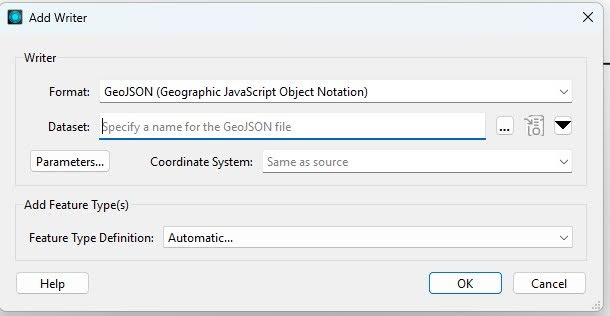
- Initialize a writer, select GeoJSON as the format, and select your destination path.
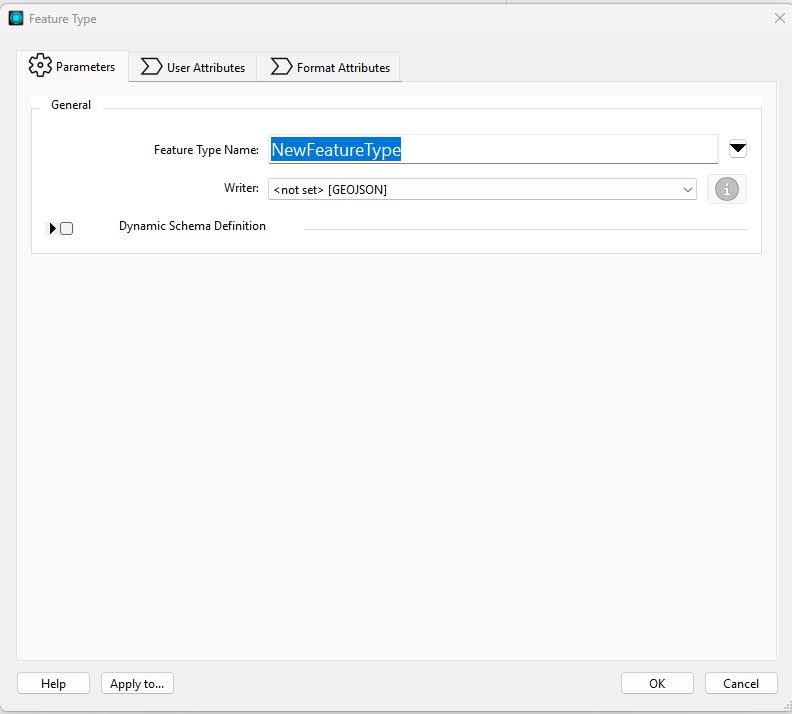
You can then name your feature type and set Writer as the previously configured path.
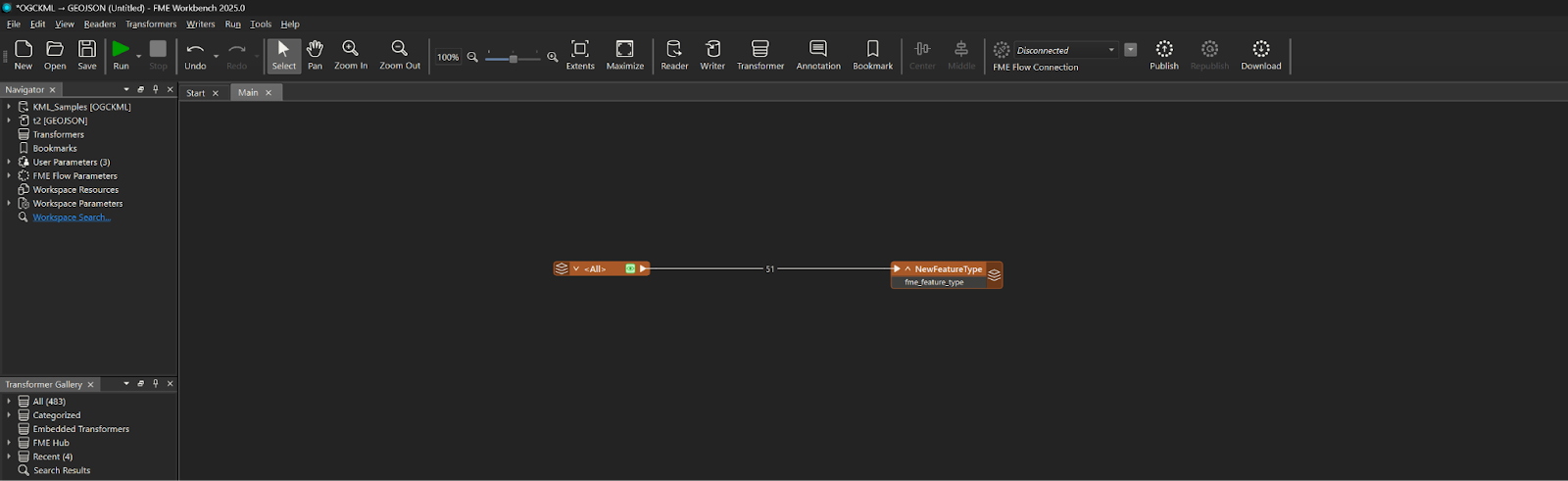
- Connect the Reader and writer together and click Run. The converted file should appear in your destination folder. You can execute the GeoJSON to KML conversion by just interchanging the reader and writer formats. The completed workflow will look as follows.
Converting KML to GeoJSON is an easy step in a no-code spatial computing platform like FME. The platform also comes built in with several AI features. Using the power of LLMs with spatial computing data manipulation is as easy as a few drag-and-drops in FME. The platform also supports exposing the deployed flows as MCP (Model Context Protocol) tools now: Once you build the flows in the FME Workbench, they can then be exported to FME Flow ( FME’s deployment environment), where they are deployed and run. FME Flow can now be exposed as an MCP server for your AI agents to trigger workflows.
Recommendations
Create a backup of the original file
Always create a backup of your original file, regardless of the direction you are converting, but especially when converting from KML to GeoJSON. KML files are larger than GeoJSON files and can contain styling, symbology, and time data that is not native to the GeoJSON format and could be lost during conversion. It is helpful to have your original file to prevent permanent data loss; it can also act as a guide for restoring lost features to the new file format.
Understand the structural differences between KML and GeoJSON
Keep the following specific differences in mind:
- KML files are generally larger than GeoJSON files.
- KML files are often not supported by newer applications, while GeoJSON files are.
- As mentioned earlier, GeoJSON files have fewer native styling and time features than KML files.
- KML and GeoJSON files have similar geometry types, but MultiGeometry and MultiPolygon features may not convert between each other correctly.
- Attributes may not convert on a 1-to-1 basis between the file types.
- Even though both file types use latitude, longitude, and altitude to mark locations, these data points can end up swapped by accident upon conversion, so it is beneficial to double-check.
Beware of security risks, unreliable tools, and outdated programs
Online conversion programs, programs not local to your PC or network, outdated libraries, and other import libraries can present security risks and compromise your data. Be especially wary if the data you are converting is sensitive, and refrain from downloading programs or files not approved by your organization. Only download software from the software publisher or from other reliable sources.
Always validate your post-conversion data
It is common to lose key data points while converting from KML to GeoJSON because of compatibility issues. Hence, always make it a point to check your conversion output in your preferred GIS software to ensure that it still meets your standards and that no important data has been lost. This must be done before deleting the original data to avoid data loss. In case there is data loss, you can use your GIS platform of choice to modify the new file to match the features of the previous file, or refine your conversion method and attempt to maintain the features that were lost. Attempting to retain features on conversion may be a better option when a large number of files need to be converted or when conversions need to happen frequently. Alternatively, certain features can be added back to converted files as part of an automated workflow if retaining the features can’t be easily done.
Simplify your KML files
KML files may contain HTML snippets, nested metadata, and custom schema blocks. Bigger KML files can contain thousands of placemarks, folders, and mixed geometry types. GeoJSON is a flat format with key-value pairs. Converting nested structures to a flat structure of GeoJSON can lead to complications. Hence, it is always better to take a hard look at your KML files and simplify them into logical layers before attempting the conversion. FME comes with numerous transformers like GeometryExtractor, GeometryReplacer, etc, to manipulate source files before writing them to GeoJSON.
Make a plan for lost styling, symbology, and differences in attributes, if applicable
Remember that KML formatting supports styling and symbology that GeoJSON does not. Consider how you will recover, replace, or redo lost stylings, symbology, or other attributes if they are lost in the conversion. Think about which platform you will use to recreate lost stylings, if/how you will store styling information, and how pre- and post-conversion comparison checks will work.
Preserve metadata
Keep your original files’ metadata. Ensure that metadata was not removed during the conversion, and verify that it remains intact in your original saved copy in case it is lost. Remember that GeoJSON does not have native time support, so time-related metadata could be lost in a KML to GeoJSON conversion. Documenting or extracting a copy of the metadata of the original file using XML parsing or JSON extraction are two methods to help prevent metadata loss.
Choose the right conversion tool
Select the conversion method with which you are most comfortable. If you are familiar with GIS software platforms such as QGIS or ArcGIS, then one of those may be the best method for your conversion. If you are familiar with coding languages and their geographical libraries, then Python, R, or another language may be a faster and more efficient method than learning a new GIS platform. Alternatively, an enterprise data management platform such as FME may be a better fit for your organization, especially if you are dealing with large amounts of varied data types. FME also has an advantage when it comes to large-scale data manipulation tasks. So if you have several complex transformations that you need to do before or after the conversion, FME will be the best choice.
Last thoughts
There are multiple reliable ways to convert KML files to GeoJSON files and vice versa. Understanding the differences between conversion methods and the variations between file formats can help you make the best choice for your organization and avoid data loss and other unwelcome surprises.
FME is an all-in-one data platform that can handle spatial commuting workflows, data transformation workflows, and AI integration. FME can also be used to implement AI agents and integrate LLM-based processing to your spatial computing workflows. You can check out more details about FME here.
Continue reading this series
Spatial Computing
Learn the basics of spatial computing and its benefits, key applications, and practical examples for processing spatial data using low-code frameworks like FME and traditional GIS software.
KML To GeoJSON
Learn about converting KML to GeoJSON files, including methods, best practices, and key differences between the two spatial file formats.
Geospatial Data Integration: Best Practices
Learn about the importance of seamless integration of diverse geospatial data sources and the challenges, best practices, and workflows involved in achieving accurate mapping and analyses for decision-making.
Shapefile To GeoJSON: Best Practices
Learn three proven methods to convert shapefiles to GeoJSON for modern web mapping applications.
Digital Twin Examples
Learn how digital twin examples are reshaping manufacturing, cities, hospitals, and farms with real-time data.
Augmented Reality Databases
Learn the key database types, data requirements, and best practices for building production-ready augmented reality systems.
MCP Server Geospatial: Tutorial & Implementation
Learn how a geospatial MCP server connects AI agents to spatial tools reliably and at scale.
Spatial Data
Learn how spatial data models, formats, and no-code automation tools simplify complex integration workflows.
What is Geospatial Data
Learn geospatial data fundamentals, real-world use cases, pipeline implementation steps, and best practices using FME.
Digital Twins in Manufacturing
Learn what digital twins are, their manufacturing use cases, and how to tackle data integration challenges while digital twins effectively.
Digital Twins in Urban Planning
Learn how digital twins in urban planning enable real-time monitoring, scenario simulation, and smarter infrastructure decisions.
GeoPandas
Learn how GeoPandas loads, validates, and joins vector data in a complete point-in-polygon workflow.
Geographic Data
Learn what geographic data is, how it works, and best practices for managing spatial data workflows.
Visual Spatial Intelligence
Learn how production systems combine spatial data and geometry to answer real-world measurement questions reliably today.