
Key takeaways:
- Integrate imagery with other data types to gain more value and insights, such as by generating a georeferenced 3D surface model.
- Multispectral satellite imagery can be automatically analyzed to gain insight on environmental changes.
- Use AI to transform hidden data insights into plain language, adding more value to your outputs.
- Preprocessing imagery and implementing a few best practices can help create more performant workflows that use less memory.
When you start working with imagery in FME and see the huge list of formats and transformers available, it doesn’t take long to realize how much potential there is to create incredible workflows. You can transform massive datasets, such as satellite images, elevation models, and aerial photos, into powerful analytical pipelines that reveal real-world changes, generate insights, and blend raster, vector, and AI tools into one seamless process.
This post provides an overview of the live demos covered in our webinar, Beyond Basics: How to Build Scalable, Intelligent Imagery Pipelines. Be sure to check it out for a deep dive into this topic!
Integrating data types to gain more insights from imagery
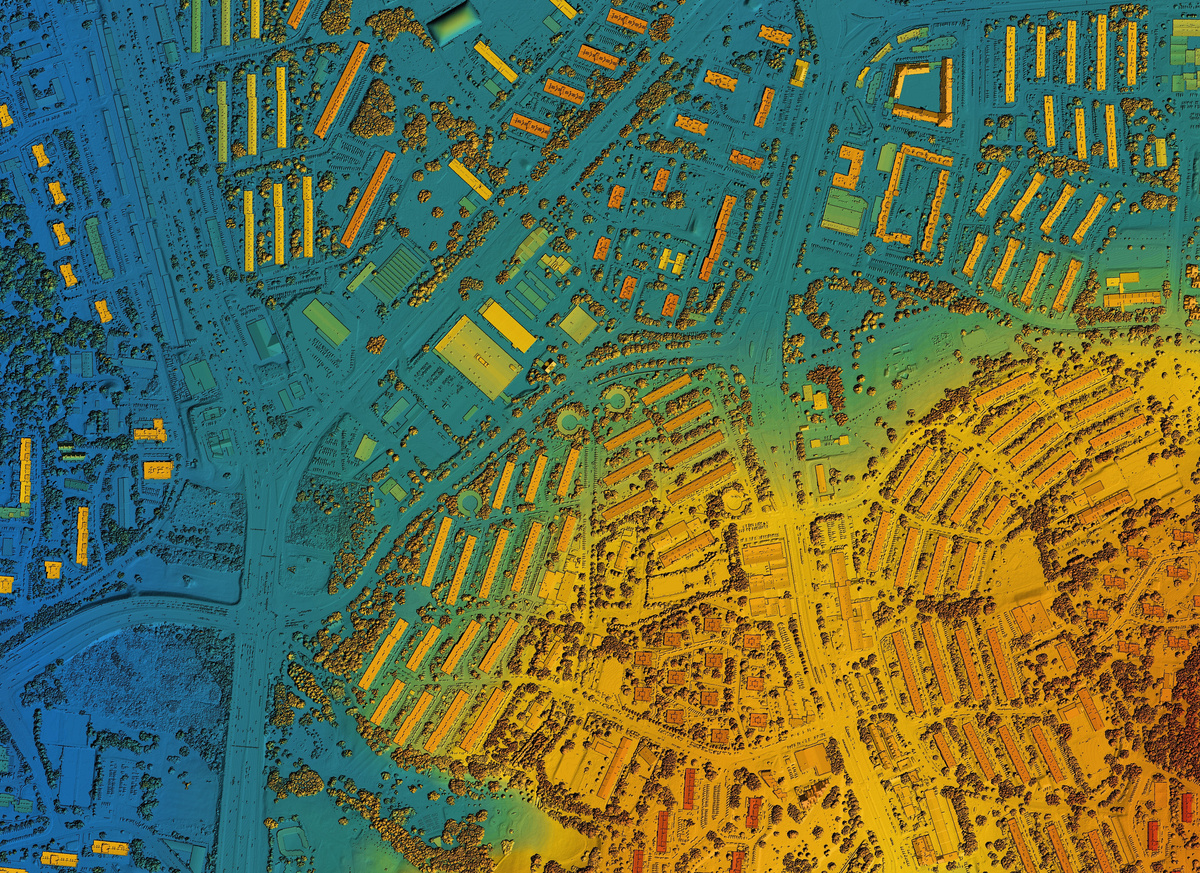
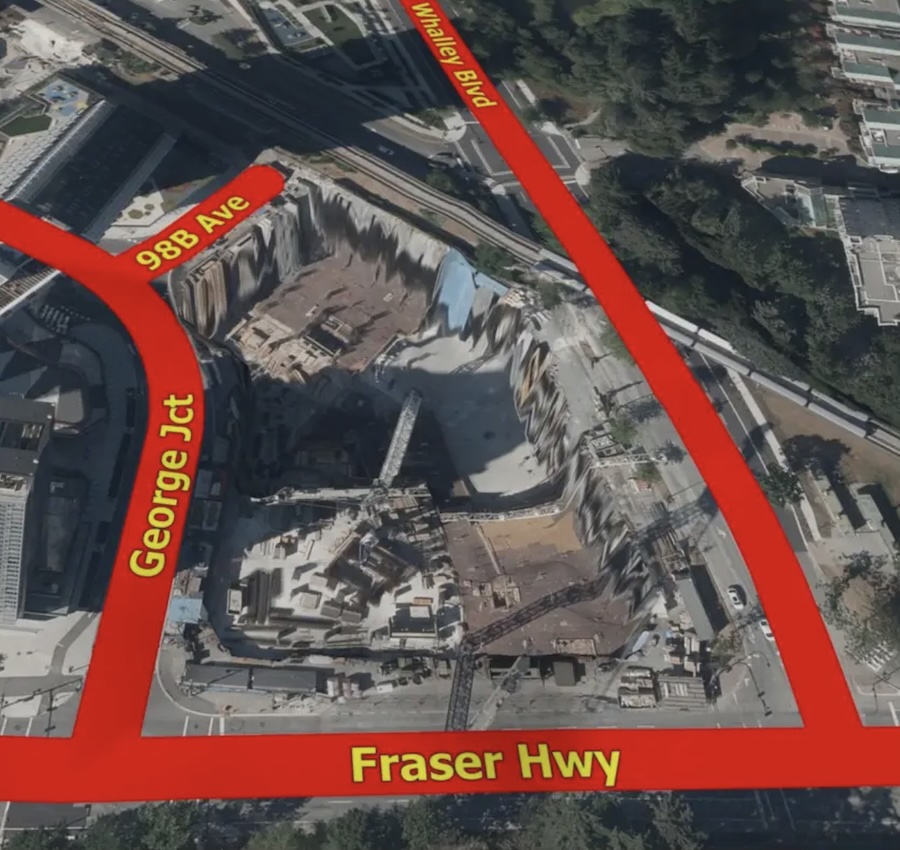
FME enables you to combine multiple data types into unified geospatial products. For example, you could build a georeferenced 3D surface model of a city for visualization, city planning, or environmental analysis by integrating road centerlines (vector data), a Digital Elevation Model (DEM), and orthophotos for texture and visual context. Key steps for this workflow include:
- Pre-processing: ensure all datasets align spatially and share the same resolution and projection.
- Raster manipulation: clean up imagery bands, remove redundancy, and add transparency where needed.
- Analysis and surface generation: bring the terrain to life in 3D and ensure seamless visual blending.
Extracting insights from multispectral satellite imagery
Multispectral imagery is data that goes beyond visible light to include infrared and other wavelengths, which can reveal key information like whether any given pixel is grass, water, soil, or concrete. For example, Sentinel-2 satellite data is multispectral. FME can be used to read this data and process it, such as to analyze vegetative health and land cover through spectral indices.
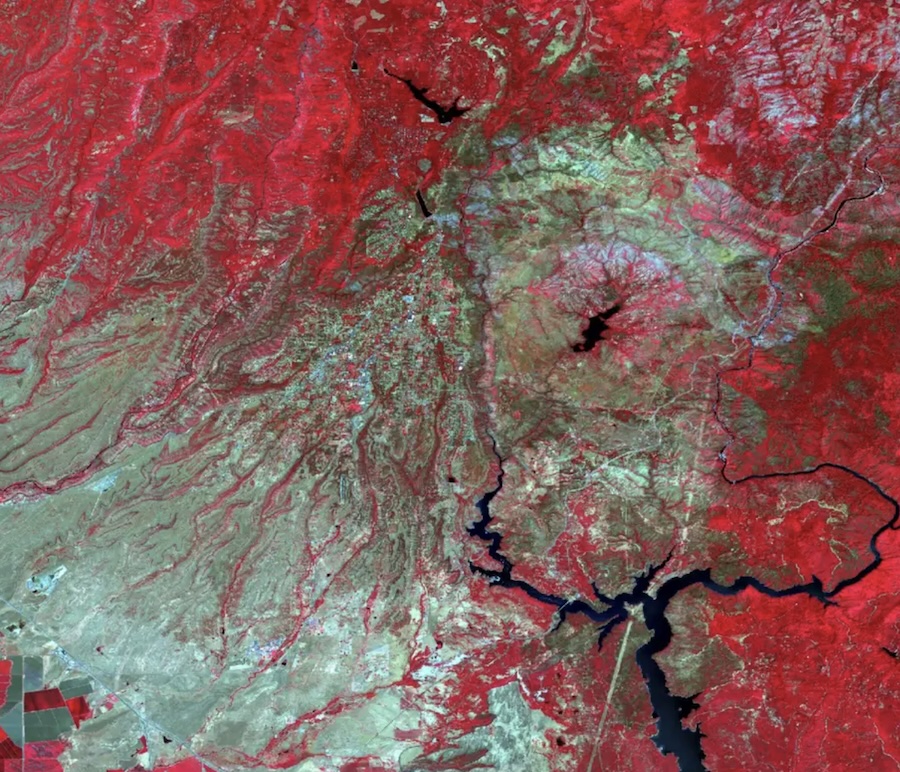
Knowing that healthy vegetation reflects strongly in the near-infrared (NIR) band but absorbs in the red band, we can calculate the Normalized Difference Vegetation Index (NDVI). With FME’s RasterExpressionEvaluator transformer, this formula is applied on a cell-by-cell basis, producing a single-band raster that quantifies vegetative health.
In our webinar demo, we built a workflow to calculate NDVI on Sentinel-2 images before and after a fire, which visualizes changes in vegetation over time.
Detecting changes and automating insights with AI
Building on the previous example that identifies environmental shifts, you can use FME to produce an interactive change report.
Key steps in the FME Workspace:
- Read in Sentinel-2 imagery.
- Pre-process and align the images.
- Generate user-selected indices (NDVI, SAVI, etc.).
- Classify and colorize raster outputs.
- Convert results to vector polygons for mapping.
- Produce an interactive HTML dashboard summarizing the changes.
To make the workflow especially powerful, you can connect to AI and ask it to interpret the numeric results. For example, the AI could offer plain-language insights in the report, like “vegetation decreased by 11%, while bare soil and urban cover increased by 9.5% after the wildfire.”
Tips and tricks for high-performance imagery workflows
Working with imagery can quickly push your system’s limits. Here are some practical tips for keeping workflows fast and efficient:
- Optimize memory usage. You can tile large images into smaller chunks for parallel processing and resample rasters to reduce resolution when full detail isn’t needed. To help FME run faster, you can also disable feature caching in large raster workflows.
- Manage bit depth wisely. Reducing bit depth can save disk space, but just be mindful that some rasters use zero values to indicate “no data,” so compressing ranges might distort results.
- Preprocess before you analyze. Cropping, resizing, or compressing imagery before ingestion reduces memory load and speeds up translation times.
- Use lazy evaluation and cloud-native formats. FME processes data only when required, which saves resources. Cloud-optimized formats like Cloud Optimized GeoTIFFs (COGs) take lazy processing further by allowing FME to “read only what you need,” improving scalability in cloud environments.
- Leverage AI assistance. AI can help with writing complex raster expressions, automating classification or labeling, generating imagery for training or simulation, writing documentation and metadata faster, and more.
Learn More
By combining raster, vector, and AI processing in FME, you can build powerful automated workflows for a range of tasks. By connecting to AI, FME-generated reports become more useful than ever, communicating insights in plain language. Check out our collection of Raster and Imagery articles and tutorials to help you get started.